# Lazybird docs
> Full Lazybird documentation for LLMs and agents. Site map: https://www.lazybird.app/llms.txt
# Lazybird API Reference
Source: https://www.lazybird.app/docs/api-reference
## Overview
The Lazybird Speech API lets you list available voices, generate MP3 speech from text or SSML, and create, edit and publish cloned voices.
Base URL:
```text
https://api.lazybird.app/v2
```
`/v1` is frozen and keeps working for existing integrations. It returns the older voice object, lists voices as one unpaged list of the first 1,000 library voices (`?owner=me` for your own) and still serves the deprecated `/personal-voices` endpoints. New integrations should use `/v2`.
A machine-readable OpenAPI 3.1 description of every endpoint is at [www.lazybird.app/openapi.json](https://www.lazybird.app/openapi.json).
## Authentication
There are two ways to get an API key:
- Create one in your Lazybird Studio settings.
- Request one by email, without opening the studio. This is built for AI agents; see [Get an API key without the UI](#get-an-api-key-without-the-ui-for-agents).
Send the key with each request.
Preferred header:
```http
X-API-Key: YOUR_API_KEY
```
You can also pass the key as an `api_key` query parameter when a tool cannot set headers:
```text
https://api.lazybird.app/v2/voices?api_key=YOUR_API_KEY
```
Keep API keys private. Do not expose them in browser code, mobile apps, public repositories, or client-side logs.
## Get an API key without the UI (for agents)
An agent can sign up or log in with just an email address. Lazybird emails a 6-digit code; the agent (or you, reading the code back to it) trades the code for a new API key. If no account exists for the email, a free account is created.
**1. Request a code**
```http
POST /auth/request-code
```
```bash
curl -X POST "https://api.lazybird.app/v2/auth/request-code" \
-H "Content-Type: application/json" \
-d '{"email":"you@example.com"}'
```
Response (`202 Accepted`):
```json
{
"sent": true,
"expiresInSeconds": 600
}
```
The response is the same whether or not an account exists for the email. Use a permanent inbox; disposable email domains are rejected with `400`. You can request one code per email per minute and five per hour; extra requests get `429` with a `Retry-After` header.
**2. Verify the code**
```http
POST /auth/verify-code
```
| Field | Type | Required | Description |
|---|---|---|---|
| `email` | string | Yes | The email the code was sent to |
| `code` | string | Yes | The 6-digit code from the email |
| `keyName` | string | No | A label for the new key, up to 100 characters |
```bash
curl -X POST "https://api.lazybird.app/v2/auth/verify-code" \
-H "Content-Type: application/json" \
-d '{"email":"you@example.com","code":"123456","keyName":"my agent"}'
```
Response:
```json
{
"apiKey": "YOUR_API_KEY",
"userId": "abc123",
"email": "you@example.com",
"isNewAccount": true
}
```
Codes expire after 10 minutes and work once. A wrong or expired code returns `400` with `{"error": "Invalid or expired code"}`; after five wrong attempts the code is cancelled and you need to request a new one. Repeated wrong codes for one email, or too many attempts or new accounts from one network or one email domain, return `429` with a `Retry-After` header. Company and custom domains can create up to 15 new accounts a day this way. A `429` for too many new accounts leaves the code valid, so you can retry before it expires. Each successful verification creates a new key; existing keys keep working.
Store the key somewhere private, such as an environment variable. Accounts created this way start on the free plan; see [Check your account](#check-your-account) and [Upgrade your plan](#upgrade-your-plan).
## Agent skill
When you are using an AI coding agent, install the official Lazybird API skill so the agent has the current API shape, examples, and integration gotchas available in context.
Codex:
```bash
npx skills add lazybirdai/skills --agent codex --skill lazybird-api
```
Claude Code:
```bash
npx skills add lazybirdai/skills --agent claude-code --skill lazybird-api
```
All agents:
```bash
npx skills add lazybirdai/skills --skill lazybird-api
```
## Quickstart
Generate speech with a known voice ID:
cURL:
```bash
curl -X POST "https://api.lazybird.app/v2/generate-speech" \
-H "X-API-Key: $LAZYBIRD_API_KEY" \
-H "Content-Type: application/json" \
--output speech.mp3 \
--data '{
"voiceId": "tgJ2Hes6DauwTg8kFrRPLN",
"text": "My name is Elyssia and I am a voice from Lazybird."
}'
```
Node.js:
```ts
import fs from "node:fs";
const response = await fetch("https://api.lazybird.app/v2/generate-speech", {
method: "POST",
headers: {
"X-API-Key": process.env.LAZYBIRD_API_KEY!,
"Content-Type": "application/json",
},
body: JSON.stringify({
voiceId: "tgJ2Hes6DauwTg8kFrRPLN",
text: "My name is Elyssia and I am a voice from Lazybird.",
}),
});
if (!response.ok) {
throw new Error(`Lazybird request failed: ${response.status}`);
}
const audio = Buffer.from(await response.arrayBuffer());
await fs.promises.writeFile("speech.mp3", audio);
```
Python:
```python
import os
import requests
response = requests.post(
"https://api.lazybird.app/v2/generate-speech",
headers={
"X-API-Key": os.environ["LAZYBIRD_API_KEY"],
"Content-Type": "application/json",
},
json={
"voiceId": "tgJ2Hes6DauwTg8kFrRPLN",
"text": "My name is Elyssia and I am a voice from Lazybird.",
},
)
response.raise_for_status()
with open("speech.mp3", "wb") as file:
file.write(response.content)
```
The response is an MP3 audio file. Save the response body to a file instead of trying to display it as JSON.
## Check service status
```http
GET /status
```
Returns the current API health.
Example:
```bash
curl "https://api.lazybird.app/v2/status"
```
Response:
```json
{
"status": "ok"
}
```
## Check your account
```http
GET /me
```
Returns the account the API key belongs to, its plan and credit usage for the current period.
```bash
curl "https://api.lazybird.app/v2/me" \
-H "X-API-Key: YOUR_API_KEY"
```
Response:
```json
{
"userId": "abc123",
"email": "you@example.com",
"plan": {
"tier": "free",
"name": "Free",
"isPaid": false
},
"credits": {
"used": 1200,
"limit": 10000,
"extraCredits": 0,
"remaining": 8800,
"resetsAt": "2026-11-01T09:30:00.000Z"
}
}
```
`plan.tier` is one of `free`, `creator`, `pro`, `max`, or `legacy` for older plans. `remaining` is the plan allowance left this period plus any purchased `extraCredits`. `resetsAt` is when `used` goes back to zero; it is omitted for team seats. One credit is one character. The plan allowance is used first; purchased `extraCredits` never expire.
## Upgrade or buy credits
```http
POST /checkout
```
Creates a checkout link for a paid plan, or for a one-time pack of extra credits. Open the link in a browser to pay; the plan or credits apply to the account as soon as payment completes, and the same API key keeps working.
| Field | Type | Required | Description |
|---|---|---|---|
| `plan` | string | For a plan | `creator`, `pro` or `max` |
| `interval` | string | For a plan | `monthly` or `yearly` |
| `creditsUsd` | number | For credits | Whole dollars to spend on credits, from 10 to 1000 |
Extra credits cost $30 per 1M with no plan, $20 per 1M on Creator and $5 per 1M on Pro or Max, so `{"creditsUsd":10}` buys 333,333 credits with no plan or 2,000,000 on Pro. They never expire. Without a plan they are for personal use; plans include commercial rights.
```bash
curl -X POST "https://api.lazybird.app/v2/checkout" \
-H "X-API-Key: YOUR_API_KEY" \
-H "Content-Type: application/json" \
-d '{"plan":"creator","interval":"monthly"}'
curl -X POST "https://api.lazybird.app/v2/checkout" \
-H "X-API-Key: YOUR_API_KEY" \
-H "Content-Type: application/json" \
-d '{"creditsUsd":10}'
```
Response:
```json
{
"checkoutUrl": "https://..."
}
```
See [pricing](https://lazybird.app/pricing) for what each plan includes.
## List voices
```http
GET /voices
```
Returns the voices you can use with `generate-speech`, in two sections:
- `myVoices`: your own voices (your clones, including any you have published) and the clones your teammates shared with your team. Your own carry `"mine": true`.
- `library`: the public voice library, without the voices already in `myVoices`
Example:
```bash
curl "https://api.lazybird.app/v2/voices?language=en&gender=female" \
-H "X-API-Key: $LAZYBIRD_API_KEY"
```
Query parameters (all optional):
| Parameter | Description |
|---|---|
| `q` | Search words; a voice matches when each word appears in its name, description or labels |
| `language` | A locale such as `en-US`, or a language such as `en` for all of its locales |
| `gender` | `female` or `male` |
| `labels` | Comma-separated labels; a voice must carry all of them |
| `sort` | `recommended` (default), `trending` (most uses in the last 7 days), `usage` (most uses of all time), `recent` (newest first) or `name` (A to Z) |
| `limit` | Voices per section, `1` to `100`. Default `100`. |
| `section` | `myVoices` or `library`: return only that section and page through it (see below) |
| `cursor` | The `nextCursor` of the previous page, together with `section` |
Response (abbreviated):
```json
{
"myVoices": [],
"library": [
{
"id": "tgJ2Hes6DauwTg8kFrRPLN",
"displayName": "Elyssia",
"description": "YouTube Host",
"language": "en-US",
"gender": "female",
"previewText": "Hey everyone, I'm Elyssia.",
"avatar": "https://cdn.lazybird.app/..."
}
],
"totals": {
"myVoices": 0,
"library": 580
}
}
```
`totals` is the number of matching voices in each section. Use the `id` value as `voiceId` when generating speech.
Both sections follow `sort` exactly. Voices that tie are ordered by `id`, so the order stays the same from page to page. Voices you starred in the Studio come back with `"favorite": true` but keep their place in the order.
### Page through a section
Add `section` to get one section, `limit` voices at a time. While more voices match, the response includes `nextCursor`; send it back as `cursor` with the same filters and sort to get the next page.
```bash
curl "https://api.lazybird.app/v2/voices?section=library&cursor=NEXT_CURSOR" \
-H "X-API-Key: $LAZYBIRD_API_KEY"
```
```json
{
"myVoices": [],
"library": [],
"nextCursor": "eyJ0IjoicmVjb21tZW5kZWQiLCJpZCI6..."
}
```
The last page has no `nextCursor`. A cursor only works with the sort it came from. A malformed cursor, one from another sort, or one whose voice was removed fails with `400`; start again from the first page.
### Voice object
Every voice endpoint returns voices in this shape. Fields without a value are left out.
| Field | Description |
|---|---|
| `id` | Voice ID. Use it as `voiceId` and treat it as opaque. |
| `displayName` | The voice's name |
| `description` | Short description, such as the character or show |
| `language` | Primary language and accent as a locale, such as `en-US` |
| `detectedLanguage` | Language heard in the voice's sample, as a bare code such as `vi`. `language` wins when both are set. |
| `detectedLocale` | Accent heard in the voice's sample, such as `en-GB`, when it is clear |
| `gender` | `female`, `male` or `unknown` |
| `labels` | Tags such as `Narrator` or `Calm` |
| `styleList` | Speaking styles the voice has for `settings.style` |
| `avatar` | Avatar image URL |
| `previewText` | The line the preview clip speaks |
| `previewUrl` | Preview clip URL (MP3) |
| `scope` | `global` (Lazybird library), `community` (published by a user) or `user` (private clone) |
| `published` | `true` when the voice is in the public library |
| `mine` | `true` when the voice is yours |
| `favorite` | `true` when you starred the voice in the Studio |
| `official` | `true` for official Lazybird voices |
| `featured` | `true` for voices featured in the voice library |
| `popular` | `true` for the 10 most used voices of all time |
| `trending` | `true` for the 10 most used voices of the last 7 days |
| `createdAt` | When the voice was added (ISO 8601) |
| `ownerNickname` | The creator's name, on user-made voices whose creator has a public profile |
| `ownerUserId` | The creator's user ID, on published voices whose creator has a public profile |
| `stats.usageCount` | Uses of all time (library voices) |
| `stats.usageCount7d` | Uses in the last 7 days (library voices) |
| `stats.popularRank` | Position among the 10 most used voices of all time |
| `stats.trendingRank` | Position among the 10 most used voices of the last 7 days |
## Generate speech
```http
POST /generate-speech
```
Generates speech with the selected voice and returns an MP3 audio file.
Headers:
| Header | Required | Value |
|---|---:|---|
| `X-API-Key` | Yes | Your Lazybird API key |
| `Content-Type` | Yes | `application/json` |
Body:
| Field | Type | Required | Description |
|---|---|---:|---|
| `voiceId` | string | Yes | Voice ID from `/voices` |
| `text` | string | One of `text` and `ssml` | Plain text to convert to speech |
| `ssml` | string | One of `text` and `ssml` | SSML content. Use this instead of `text` when you need pauses or speech markup. |
| `settings` | object | No | Optional voice settings for this generation |
Provide exactly one of `text` and `ssml`, and not an empty one. Fields not listed here, in the body or in `settings`, are rejected with `400`.
### Plain text example
```bash
curl -X POST "https://api.lazybird.app/v2/generate-speech" \
-H "X-API-Key: $LAZYBIRD_API_KEY" \
-H "Content-Type: application/json" \
--output speech.mp3 \
--data '{
"voiceId": "tgJ2Hes6DauwTg8kFrRPLN",
"text": "My name is Elyssia and I am a voice from Lazybird."
}'
```
### SSML example
```bash
curl -X POST "https://api.lazybird.app/v2/generate-speech" \
-H "X-API-Key: $LAZYBIRD_API_KEY" \
-H "Content-Type: application/json" \
--output speech.mp3 \
--data '{
"voiceId": "tgJ2Hes6DauwTg8kFrRPLN",
"ssml": "My name is Elyssia and I am a voice from Lazybird."
}'
```
### Voice settings example
All settings fields are optional.
```json
{
"voiceId": "tgJ2Hes6DauwTg8kFrRPLN",
"text": "This line is slower and slightly higher pitched.",
"settings": {
"style": "sad",
"speed": 0.7,
"pitch": 1.2,
"volume": 1,
"styleIntensity": 1,
"locale": "es-ES"
}
}
```
Settings:
| Field | Type | Description |
|---|---|---|
| `style` | string | Speaking style, one of the voice's `styleList` values such as `cheerful`. Ignored, together with `styleIntensity`, when the voice doesn't list it. |
| `speed` | number | Speech speed. `1` is normal speed. Must be greater than `0`. |
| `pitch` | number | Voice pitch. `1` is the default pitch. Must be greater than `0`. |
| `volume` | number | Output volume. `1` is the default volume. Must be `0` or greater (`0` is silent). |
| `styleIntensity` | number | Strength of `style`. `1` is the default; the closest level the voice has is used. |
| `locale` | string | Language and accent to speak in, as a locale with a region such as `en-US`, `es-ES`, `fr-FR`, `de-DE` or `ja-JP`. A bare language such as `es` is rejected with `400`. |
### Locale override
Every voice, cloned voices included, can speak every supported language. The voice speaks in its own `language` unless you pass `settings.locale`; use it when the text is in another language or you want a different accent.
```bash
curl -X POST "https://api.lazybird.app/v2/generate-speech" \
-H "X-API-Key: $LAZYBIRD_API_KEY" \
-H "Content-Type: application/json" \
--output spanish.mp3 \
--data '{
"voiceId": "tgJ2Hes6DauwTg8kFrRPLN",
"text": "Hola, este audio usa una configuración regional en español.",
"settings": {
"locale": "es-ES"
}
}'
```
## List your voices
```http
GET /voices?section=myVoices
```
Returns only the `myVoices` section, paged like the library (`limit`, `cursor`): your private clones, the ones you have published, and the clones your teammates shared with your team. Your own carry `"mine": true`.
Example:
```bash
curl "https://api.lazybird.app/v2/voices?section=myVoices" \
-H "X-API-Key: $LAZYBIRD_API_KEY"
```
Response (abbreviated):
```json
{
"myVoices": [
{
"id": "abc123",
"displayName": "Narrator",
"scope": "user",
"published": false,
"mine": true
}
],
"library": []
}
```
Use the `id` as `voiceId` when generating speech. Treat it as opaque. Voices cloned before the unified voice list also accept their legacy `pv:` id anywhere a voice ID is accepted.
## Create a voice
```http
POST /voices
```
Creates a private cloned voice from a voice sample. Voice cloning requires a plan with voice cloning access and available voice slots.
Upload the sample file as `multipart/form-data`:
| Field | Type | Required | Description |
|---|---|---:|---|
| `name` | text | Yes | Display name for the cloned voice |
| `sample` | file | Yes | Voice sample: MP3, WAV, or OGG, up to 20 MB. Use a clean 10–30 second recording of one speaker. |
```bash
curl -X POST "https://api.lazybird.app/v2/voices" \
-H "X-API-Key: $LAZYBIRD_API_KEY" \
-F "name=Narrator" \
-F "sample=@sample.wav"
```
If the sample is already hosted at a publicly reachable URL, send JSON instead:
| Field | Type | Required | Description |
|---|---|---:|---|
| `name` | string | Yes | Display name for the cloned voice |
| `sampleUrl` | string | Yes | Public URL for the source voice sample |
```bash
curl -X POST "https://api.lazybird.app/v2/voices" \
-H "X-API-Key: $LAZYBIRD_API_KEY" \
-H "Content-Type: application/json" \
--data '{
"name": "Narrator",
"sampleUrl": "https://example.com/sample.wav"
}'
```
Send either a `sample` file or a `sampleUrl`, not both. A successful request returns `201 Created` with the new voice:
```json
{
"voice": {
"id": "abc123",
"displayName": "Narrator",
"scope": "user",
"published": false,
"mine": true
}
}
```
## Design a voice
```http
POST /voices/design
```
Generates a new voice from a text description of who is speaking and returns a sample of it speaking `text`. The description is never spoken. Requires voice cloning access.
| Field | Type | Required | Description |
|---|---|---:|---|
| `description` | string | Yes | Who is speaking: age, gender, pitch, energy, accent, emotion. Up to 500 characters. |
| `text` | string | Yes | What the sample says. Up to 1000 characters. Each design uses characters equal to the length of `text`, with a minimum of 50. |
| `language` | string | No | Locale of `text`, such as `en-US` or `vi-VN`. Detected when omitted. |
| `seed` | integer | No | 0–2147483647. Omit for a new random voice; reuse a returned seed with the same description and text to reproduce it. |
```bash
curl -X POST "https://api.lazybird.app/v2/voices/design" \
-H "X-API-Key: $LAZYBIRD_API_KEY" \
-H "Content-Type: application/json" \
--data '{
"description": "A youthful, energetic, enthusiastic American woman",
"text": "Hey there! I am so excited to show you what we built this week."
}'
```
```json
{
"sampleUrl": "https://cdn.lazybird.app/users/.../voice-design-....mp3",
"seed": 1359090529,
"duration": 4.82
}
```
Designing does not create a voice or use a voice slot. To keep a design, pass its `sampleUrl` to [Create a voice](#create-a-voice):
```bash
curl -X POST "https://api.lazybird.app/v2/voices" \
-H "X-API-Key: $LAZYBIRD_API_KEY" \
-H "Content-Type: application/json" \
--data '{
"name": "Energetic Host",
"sampleUrl": "https://cdn.lazybird.app/users/.../voice-design-....mp3"
}'
```
## Generate speech with a cloned voice
Cloned voices work with the normal speech endpoint. Pass the voice `id` as `voiceId`:
```bash
curl -X POST "https://api.lazybird.app/v2/generate-speech" \
-H "X-API-Key: $LAZYBIRD_API_KEY" \
-H "Content-Type: application/json" \
--output cloned.mp3 \
--data '{
"voiceId": "abc123",
"text": "Este audio usa mi voz clonada en español.",
"settings": {
"locale": "es-ES"
}
}'
```
## Get a voice
```http
GET /voices/{voiceId}
```
Returns one voice: any voice in the public library, or one of your own private voices.
```bash
curl "https://api.lazybird.app/v2/voices/abc123" \
-H "X-API-Key: $LAZYBIRD_API_KEY"
```
Response:
```json
{
"voice": {
"id": "abc123",
"displayName": "Narrator",
"description": "Deep, calm narrator",
"labels": ["Narrator", "Male"],
"language": "en-US",
"avatar": "https://cdn.lazybird.app/...",
"previewText": "Hi, I'm a cloned voice. I can say anything you want me to say.",
"previewUrl": "https://cdn.lazybird.app/....mp3",
"scope": "user",
"published": false,
"mine": true
}
}
```
## Update a voice
```http
PATCH /voices/{voiceId}
```
Changes the details of one of your own voices. Send only the fields you want to change. Edits to a published voice show in the public library right away.
| Field | Type | Description |
|---|---|---|
| `name` | string | Display name |
| `description` | string | Short description shown on the voice card, such as the character or show |
| `labels` | string[] | Replaces the voice's labels. Allowed: `Male`, `Female`, `Child`, `Young Adult`, `Adult`, `Elder`, `Narrator`, `Audiobook`, `Podcast`, `Character`, `Celebrity`, `Streamer`, `Advertising`, `Anime`, `ASMR`, `Customer Service`, `Documentary`, `Education`, `Horror`, `Kids`, `Meditation`, `News`, `Sleep`, `Storytelling`, `Trailer`, `Calm`, `Deep`, `Energetic` |
| `language` | string | Primary language and accent as a locale, such as `en-US`, `en-GB`, `es-MX` or `ja-JP`. An empty string clears it. |
| `avatarUrl` | string | Public URL of a PNG, JPEG or WebP image to use as the avatar |
```bash
curl -X PATCH "https://api.lazybird.app/v2/voices/abc123" \
-H "X-API-Key: $LAZYBIRD_API_KEY" \
-H "Content-Type: application/json" \
--data '{
"description": "Deep, calm narrator",
"labels": ["Narrator", "Male"],
"language": "en-US"
}'
```
To upload the avatar image from a file instead, send `multipart/form-data` with the image as `avatar` (PNG, JPEG or WebP, up to 5 MB). The other fields can go in the same form; send `labels` comma-separated:
```bash
curl -X PATCH "https://api.lazybird.app/v2/voices/abc123" \
-H "X-API-Key: $LAZYBIRD_API_KEY" \
-F "avatar=@avatar.png" \
-F "labels=Narrator,Male"
```
Avatars are cropped to a 200×200 square, so use a square image with the face centred. Send either an `avatar` file or an `avatarUrl`, not both. Unknown fields are rejected with `400`.
The response is the updated voice, in the same `{ "voice": { ... } }` shape as [Get a voice](#get-a-voice). Changing `language` clears the voice's preview clip, because the preview line follows the language; [render it again](#render-a-voice-preview) afterwards.
## Replace a voice sample
```http
PUT /voices/{voiceId}/sample
```
Clones one of your voices again from a new recording. The voice keeps its ID, name, description, labels, language and avatar, so existing projects and integrations keep working and speak with the new sample from then on. Use it when the original sample had background noise, music or a second speaker.
Upload the new sample as `multipart/form-data`:
| Field | Type | Required | Description |
|---|---|---:|---|
| `sample` | file | Yes | Voice sample: MP3, WAV, or OGG, up to 20 MB. Use a clean 10–30 second recording of one speaker. |
| `rightsConfirmed` | boolean | For published voices | Confirms this is your own voice or that the speaker agreed to it being cloned |
```bash
curl -X PUT "https://api.lazybird.app/v2/voices/abc123/sample" \
-H "X-API-Key: $LAZYBIRD_API_KEY" \
-F "sample=@new-sample.wav"
```
Or send JSON with a publicly reachable `sampleUrl` instead of the file:
```bash
curl -X PUT "https://api.lazybird.app/v2/voices/abc123/sample" \
-H "X-API-Key: $LAZYBIRD_API_KEY" \
-H "Content-Type: application/json" \
--data '{
"sampleUrl": "https://example.com/new-sample.wav",
"rightsConfirmed": true
}'
```
Replacing a sample counts as one voice creation toward your plan's monthly limit, but does not use another voice slot. A published voice changes for everyone who uses it, so `rightsConfirmed` is required for those. The response is the updated voice, in the same `{ "voice": { ... } }` shape as [Get a voice](#get-a-voice). The old preview clip is cleared; [render it again](#render-a-voice-preview) afterwards.
## Publish a voice
```http
POST /voices/{voiceId}/publish
```
Adds one of your private voices to the public voice library. Anyone can then find it, open its page at `https://lazybird.app/voices/{voiceId}` and generate speech with it. Give the voice a name, description, labels, language and avatar before publishing; they are what people see in the library.
```bash
curl -X POST "https://api.lazybird.app/v2/voices/abc123/publish" \
-H "X-API-Key: $LAZYBIRD_API_KEY"
```
The response is the voice, now with `"scope": "community"` and `"published": true`.
To take it out of the library again, use `POST /voices/{voiceId}/unpublish`. The voice stays in your own voices.
## Render a voice preview
```http
POST /voices/{voiceId}/preview
```
Returns the voice's short preview clip, the `previewText` line spoken in the voice. The first call renders it; later calls return the stored clip. Rendering is charged to the voice owner's credits.
```bash
curl -X POST "https://api.lazybird.app/v2/voices/abc123/preview" \
-H "X-API-Key: $LAZYBIRD_API_KEY"
```
Response:
```json
{
"previewUrl": "https://cdn.lazybird.app/....mp3",
"duration": 4.2
}
```
`duration` is in seconds and is only included when this call rendered the clip.
## Delete a voice
```http
DELETE /voices/{voiceId}
```
Deletes one of your own voices. A published voice is also removed from the public voice library.
```bash
curl -X DELETE "https://api.lazybird.app/v2/voices/abc123" \
-H "X-API-Key: $LAZYBIRD_API_KEY"
```
Response:
```json
{
"deleted": true
}
```
## Responses
Successful `generate-speech` requests return an MP3 file.
```http
HTTP/1.1 200 OK
Content-Type: audio/mpeg
```
Errors return JSON with an `error` message:
```json
{
"error": "Authorization Error: Invalid API key"
}
```
| Status | Meaning |
|---|---|
| `400` | Invalid input, such as a missing or unknown field, an invalid page cursor, or a wrong or expired login code |
| `401` | Missing or invalid API key |
| `422` | Your plan blocked the request, for example you are out of credits or voice cloning slots; check `GET /me` |
| `429` | Too many requests; wait for the number of seconds in the `Retry-After` header (also in `retryAfterSeconds`) |
| `503` | The service is temporarily unavailable; try again later |
If a request fails, check that your API key is valid, the `voiceId` exists, and the request includes exactly one of `text` and `ssml`.
## Testing tips
- Make API requests from a server environment, not browser code.
- Start by calling `/voices` and copying a voice ID from the response.
- Save `generate-speech` responses with `--output speech.mp3`.
- Keep SSML valid XML. Escape quotation marks correctly when sending SSML inside JSON.
# Lazybird User Guide
Source: https://www.lazybird.app/docs/user-guide
## Create a project
1. Sign in to Lazybird Studio.
2. From the Projects screen, click **Create**.
3. Type or paste your script into the first block. Click **Add a block** for the next line.
4. Click the project title at the top to rename it.
Each block is one line of narration with its own voice and settings. Put lines in separate blocks when you want a different voice, pace, or pause for each one. Lazybird generates audio block by block, so you can fix one line without regenerating the rest.
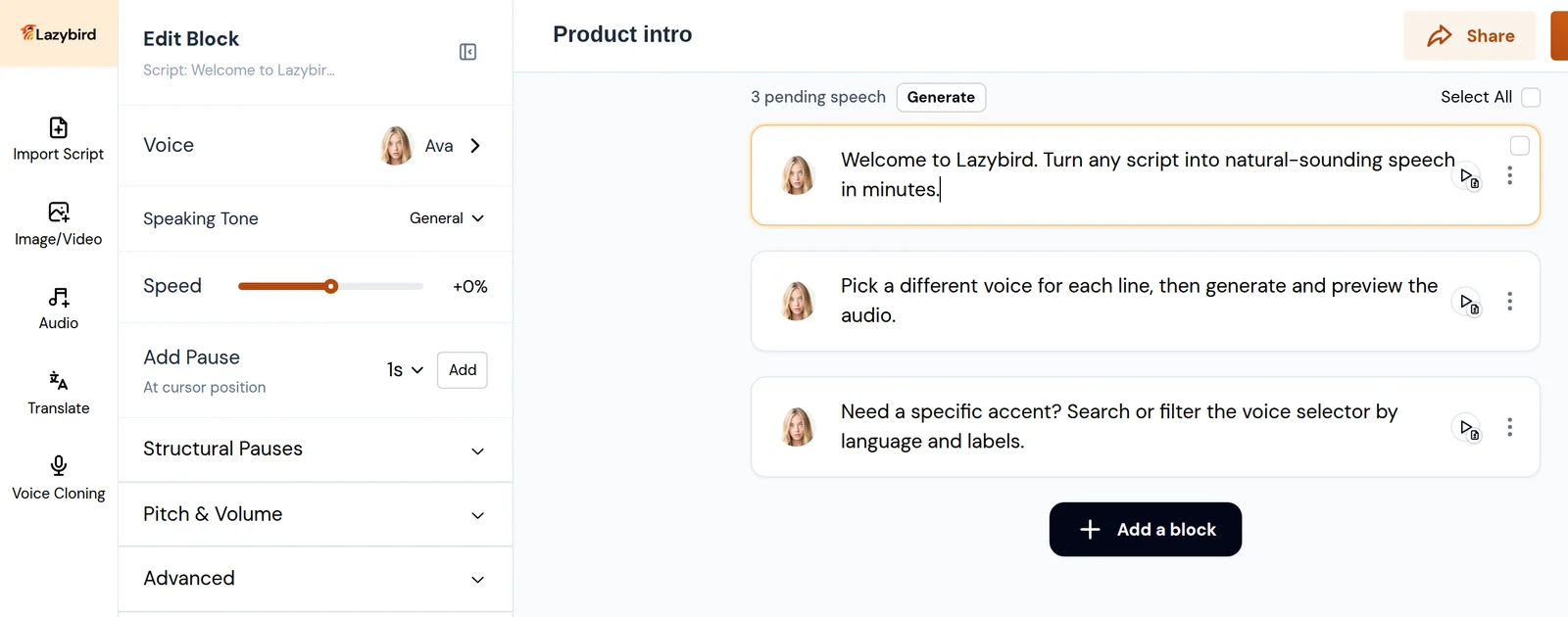 The editor has four areas:
- **Left sidebar:** Import Script, Image/Video, Audio, Translate, and Voice Cloning.
- **Left panel:** controls for the selected block (**Edit Block**), or the panel you opened from the sidebar.
- **Script blocks:** your text. Each block has a voice avatar, a play button, and a menu (**⋮**).
- **Bottom bar:** **Rearrange Scripts**, the **Auto-generate Speech** switch, the player, and the timeline.
## Choose a voice
1. Click a script block to select it. The left panel shows **Edit Block**.
2. Click the **Voice** row, or the voice avatar on the block. The panel switches to **Select Voice**.
3. Find a voice by searching, filtering, or browsing the sections below.
4. Click a voice to apply it to the selected block. To change several blocks at once, tick their checkboxes (or **Select All**) first.
The editor has four areas:
- **Left sidebar:** Import Script, Image/Video, Audio, Translate, and Voice Cloning.
- **Left panel:** controls for the selected block (**Edit Block**), or the panel you opened from the sidebar.
- **Script blocks:** your text. Each block has a voice avatar, a play button, and a menu (**⋮**).
- **Bottom bar:** **Rearrange Scripts**, the **Auto-generate Speech** switch, the player, and the timeline.
## Choose a voice
1. Click a script block to select it. The left panel shows **Edit Block**.
2. Click the **Voice** row, or the voice avatar on the block. The panel switches to **Select Voice**.
3. Find a voice by searching, filtering, or browsing the sections below.
4. Click a voice to apply it to the selected block. To change several blocks at once, tick their checkboxes (or **Select All**) first.
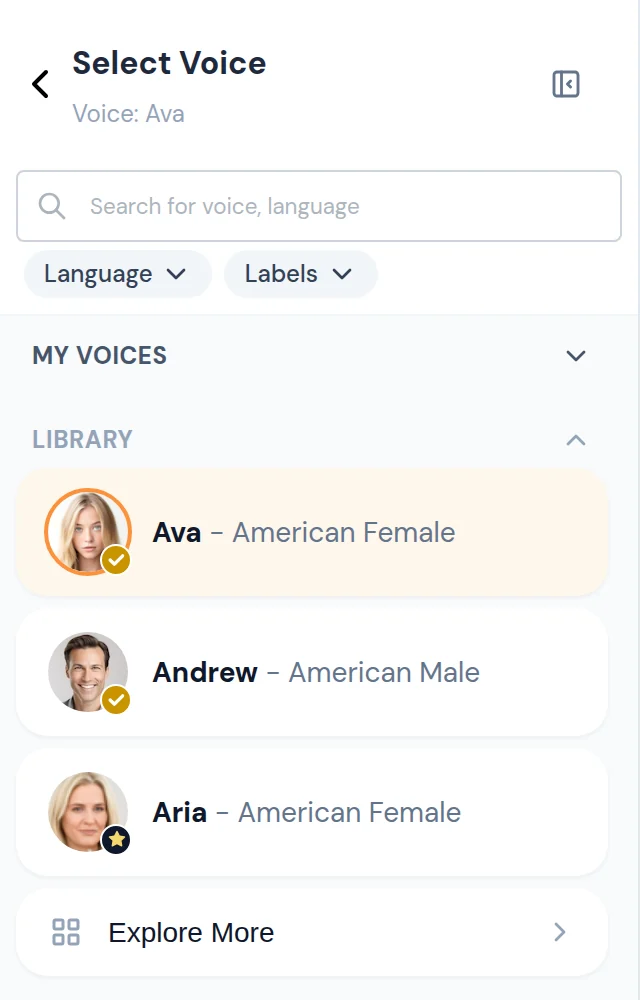 The voice selector shows:
- **Search box:** matches voice names, languages, and accents. For example, try `Greek` or `Australian`.
- **Language** and **Labels** filters: see [Filter voices](#filter-voices).
- **Recent:** up to five voices you used recently on this device. It's hidden while you search or filter.
- **My Voices:** voices you've cloned, including any you've published.
- **Library:** Lazybird's voices plus voices published by the community.
Click a section heading to collapse or expand it. Favorite voices are listed first in each section.
Each row shows the voice name and a short description, such as "American Female". The small badge on the avatar marks a favorite (heart), an official Lazybird voice (gold check), a popular voice (star), or a trending voice (flame).
### Preview a voice
Hover over a row and click the avatar to play a sample. Click it again to stop. Previewing doesn't change the block's voice.
### Voice menu
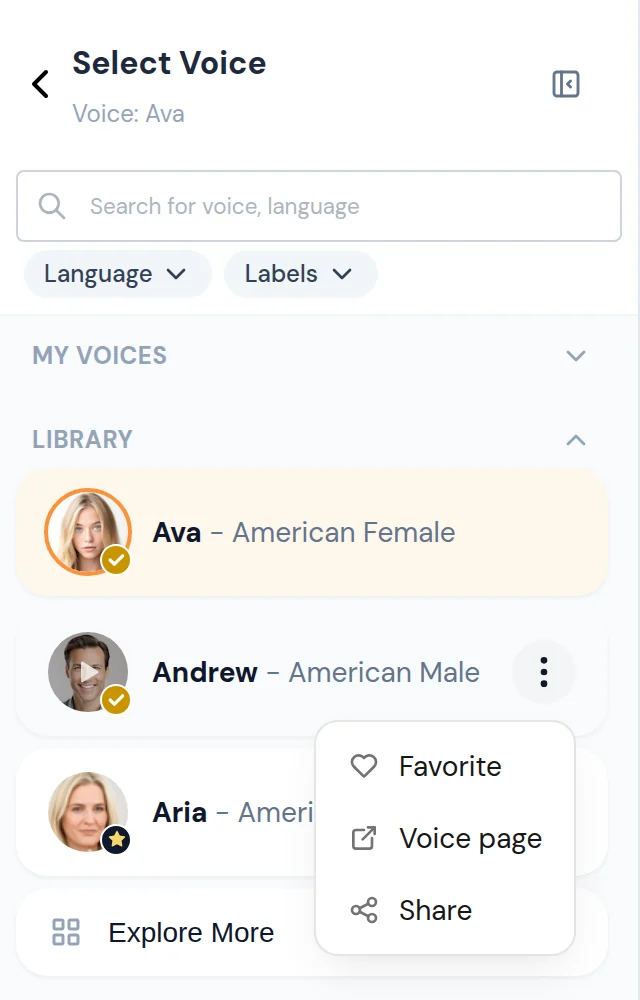
Hover over a row and click **⋮** for more options:
- **Favorite / Unfavorite:** favorites get a heart badge and appear first in their section.
- **Voice page:** opens the voice's public page in a new tab.
- **Share:** copies a link to the voice.
- **Edit** and **Delete:** appear only on voices you cloned.
The voice selector shows:
- **Search box:** matches voice names, languages, and accents. For example, try `Greek` or `Australian`.
- **Language** and **Labels** filters: see [Filter voices](#filter-voices).
- **Recent:** up to five voices you used recently on this device. It's hidden while you search or filter.
- **My Voices:** voices you've cloned, including any you've published.
- **Library:** Lazybird's voices plus voices published by the community.
Click a section heading to collapse or expand it. Favorite voices are listed first in each section.
Each row shows the voice name and a short description, such as "American Female". The small badge on the avatar marks a favorite (heart), an official Lazybird voice (gold check), a popular voice (star), or a trending voice (flame).
### Preview a voice
Hover over a row and click the avatar to play a sample. Click it again to stop. Previewing doesn't change the block's voice.
### Voice menu
Hover over a row and click **⋮** for more options:
- **Favorite / Unfavorite:** favorites get a heart badge and appear first in their section.
- **Voice page:** opens the voice's public page in a new tab.
- **Share:** copies a link to the voice.
- **Edit** and **Delete:** appear only on voices you cloned.
 ## Filter voices
Use the **Language** and **Labels** filters under the search box to narrow every section at once.
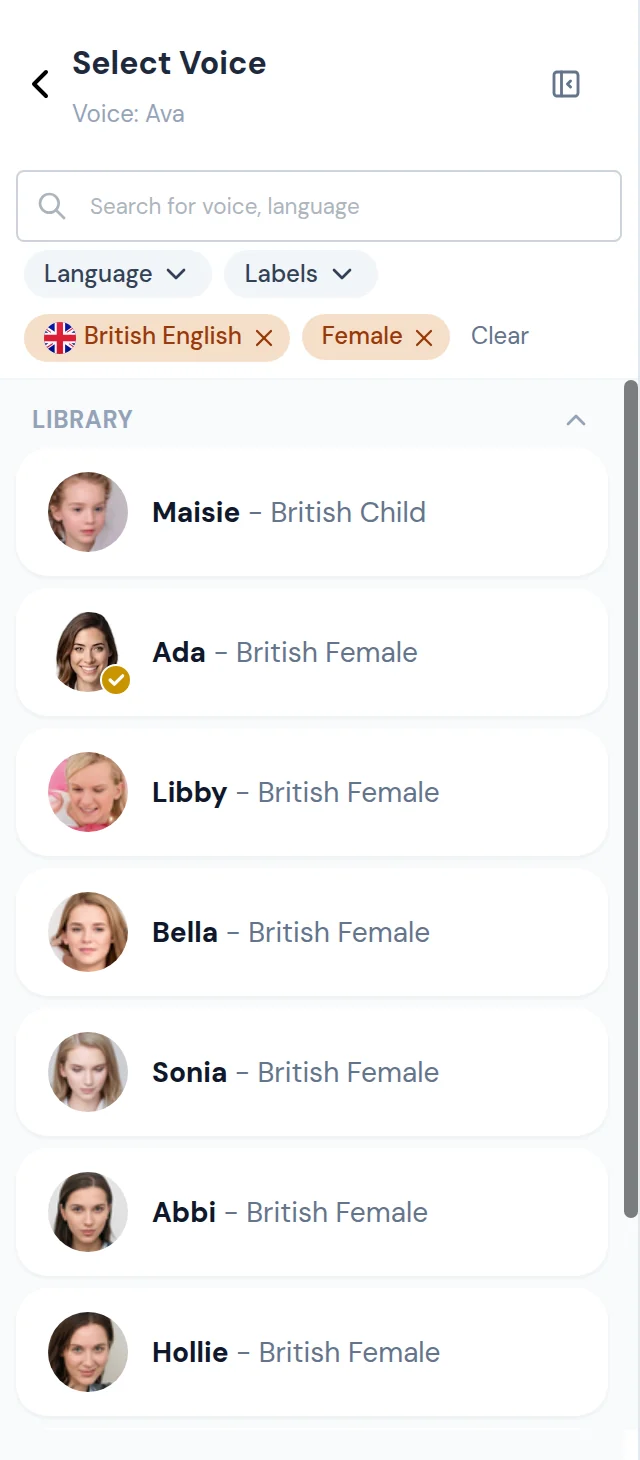
1. Click **Language** and pick a language or accent. Type in the box at the top of the list to find one quickly, for example `British`.
2. Click **Labels** and pick one or more labels, such as **Female**, **Male**, **Child**, **Character**, or **Celebrity**.
3. Each active filter appears as a chip below the buttons. Click **×** on a chip to remove it, or **Clear** to remove all filters.
## Filter voices
Use the **Language** and **Labels** filters under the search box to narrow every section at once.
1. Click **Language** and pick a language or accent. Type in the box at the top of the list to find one quickly, for example `British`.
2. Click **Labels** and pick one or more labels, such as **Female**, **Male**, **Child**, **Character**, or **Celebrity**.
3. Each active filter appears as a chip below the buttons. Click **×** on a chip to remove it, or **Clear** to remove all filters.
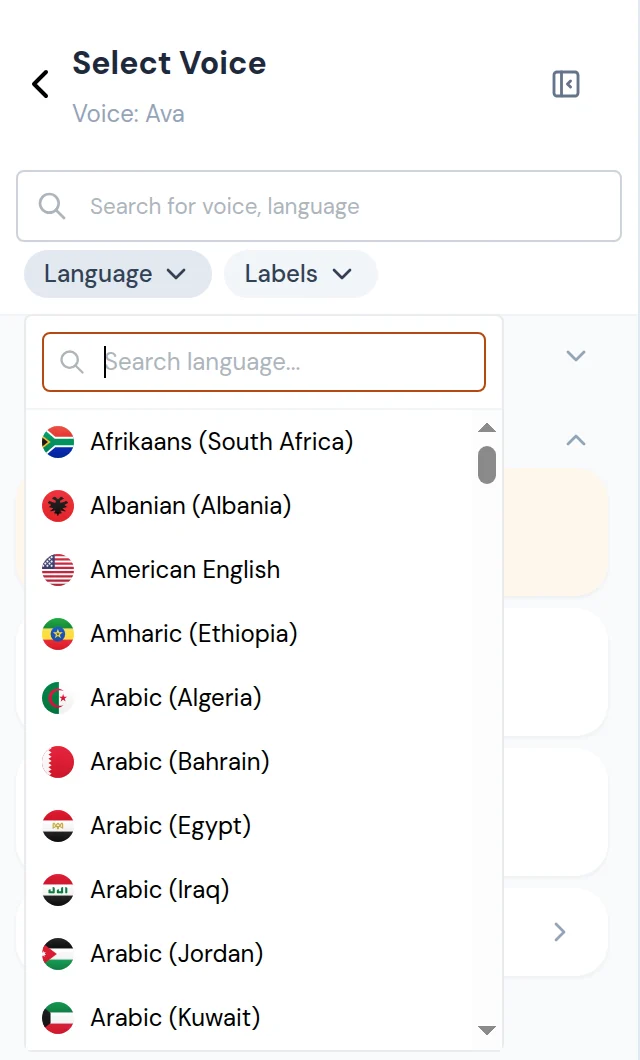 Filters combine with each other and with search. In this example, only British English female voices are shown:
 If nothing matches, the selector shows "No voices match." Remove a filter or change the search to see more voices.
## Explore more voices
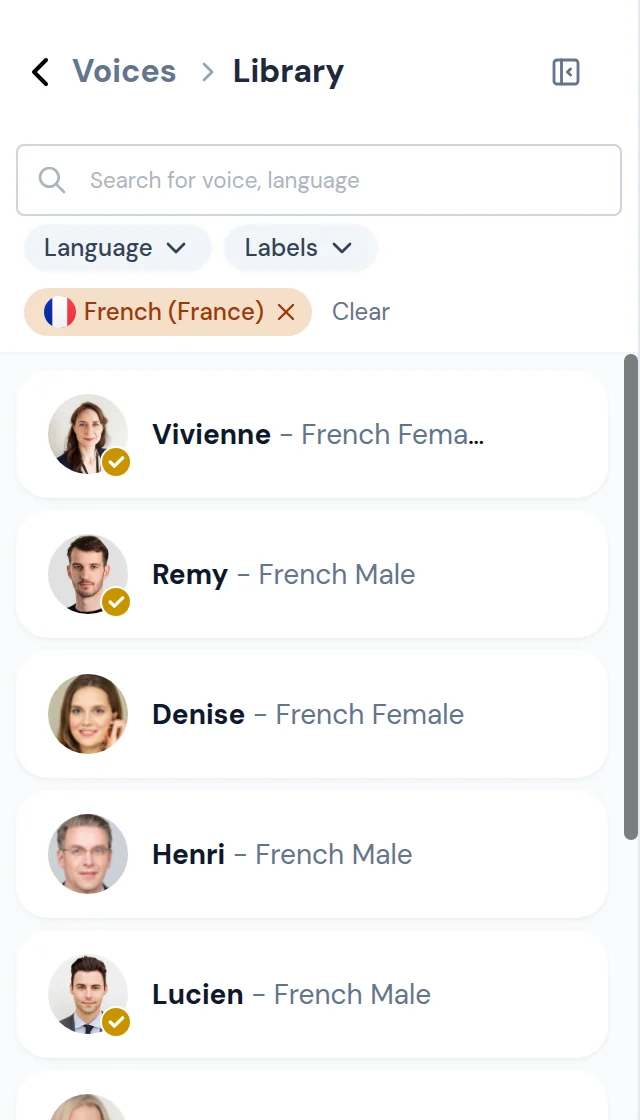
A section with more matches than fit on screen ends with an **Explore More** row. Click it to open the full list for that section, for example **Voices › Library**.
- The list keeps loading as you scroll.
- Search and filters work the same way, and stay applied when you go back.
- Click **Voices** in the header, or the back arrow, to return.
If nothing matches, the selector shows "No voices match." Remove a filter or change the search to see more voices.
## Explore more voices
A section with more matches than fit on screen ends with an **Explore More** row. Click it to open the full list for that section, for example **Voices › Library**.
- The list keeps loading as you scroll.
- Search and filters work the same way, and stay applied when you go back.
- Click **Voices** in the header, or the back arrow, to return.
 ## Generate and preview audio
- Click the play button on a block to generate (if needed) and play that block.
- Click **Generate** next to "N pending speech" above the blocks to generate every block that changed.
- Use the player in the bottom bar to play the whole project.
- Turn on **Auto-generate Speech** in the bottom bar to generate blocks automatically after you edit them.
Blocks that need new audio count as pending. Editing a block's text, voice, or settings makes it pending again.
## Regenerate a bad output
Voice generation can vary slightly from one attempt to the next. If a line has an awkward pause, emphasis, or pronunciation:
1. Click **⋮** on the block.
2. Choose **Regenerate**.
3. Play the block again.
## Generate and preview audio
- Click the play button on a block to generate (if needed) and play that block.
- Click **Generate** next to "N pending speech" above the blocks to generate every block that changed.
- Use the player in the bottom bar to play the whole project.
- Turn on **Auto-generate Speech** in the bottom bar to generate blocks automatically after you edit them.
Blocks that need new audio count as pending. Editing a block's text, voice, or settings makes it pending again.
## Regenerate a bad output
Voice generation can vary slightly from one attempt to the next. If a line has an awkward pause, emphasis, or pronunciation:
1. Click **⋮** on the block.
2. Choose **Regenerate**.
3. Play the block again.
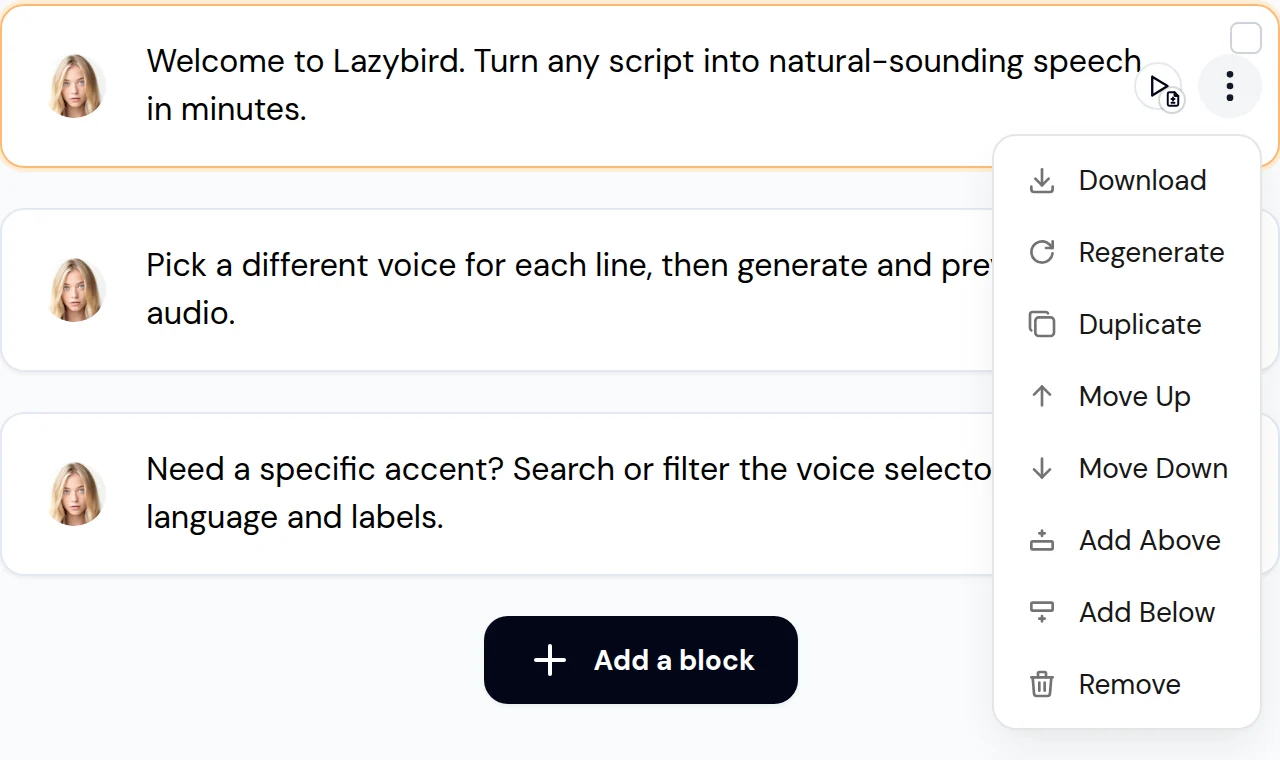 The block menu also lets you download the block's audio, duplicate it, move it up or down, add a block above or below, or remove it. To reorder many blocks, use **Rearrange Scripts** in the bottom bar.
Regenerating is usually the fastest fix for a one-off delivery problem. If the problem repeats, try a [custom pronunciation](#customize-pronunciation), a [pause](#add-pauses), or a different speaking tone.
## Adjust voice settings
Select a block to see its settings in the **Edit Block** panel:
- **Voice:** the voice for this block. Click to open the voice selector.
- **Speaking Tone:** the speaking style, for voices that support styles. **General** is the default.
- **Speed:** slower or faster than normal.
- **Add Pause:** inserts a pause at the cursor (see [Add pauses](#add-pauses)).
- **Structural Pauses:** silence before and after the block, in seconds.
- **Pitch & Volume:** lower or raise the pitch, and set the block volume.
- **Advanced:** **Language / Accent** (Auto by default) and **Expressiveness**, when the voice supports them.
The block menu also lets you download the block's audio, duplicate it, move it up or down, add a block above or below, or remove it. To reorder many blocks, use **Rearrange Scripts** in the bottom bar.
Regenerating is usually the fastest fix for a one-off delivery problem. If the problem repeats, try a [custom pronunciation](#customize-pronunciation), a [pause](#add-pauses), or a different speaking tone.
## Adjust voice settings
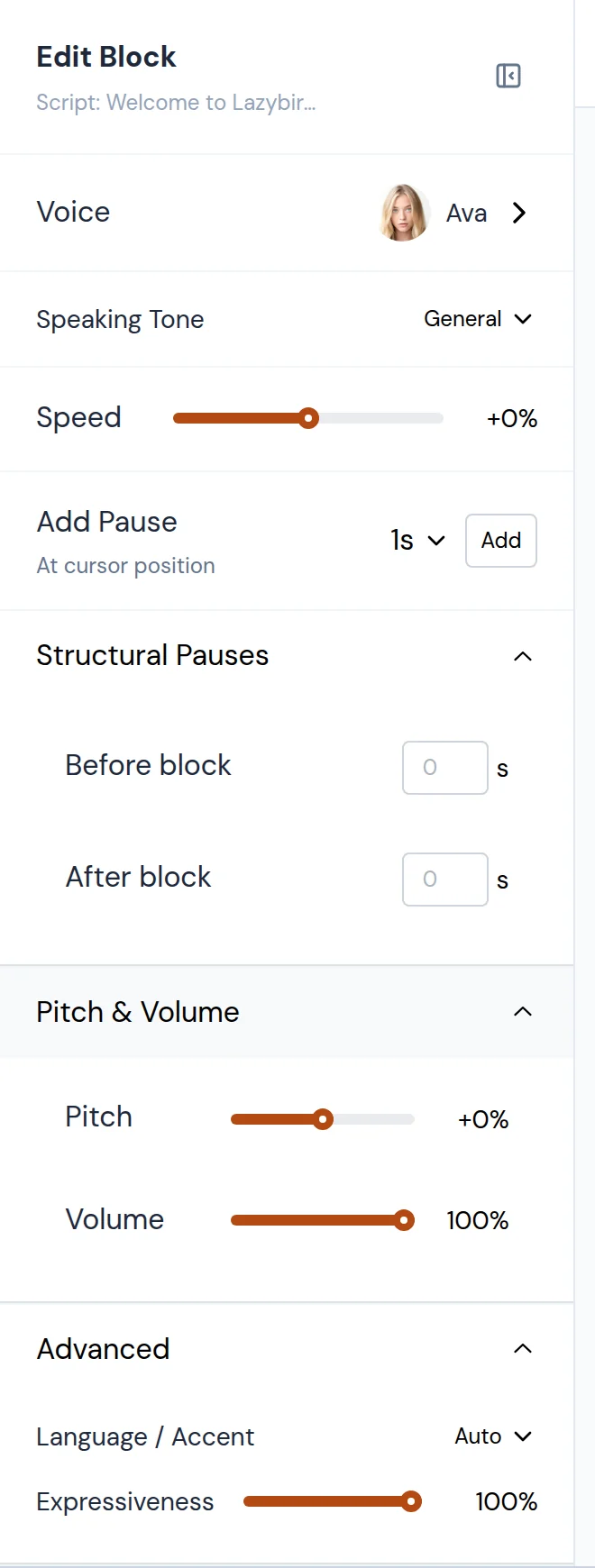
Select a block to see its settings in the **Edit Block** panel:
- **Voice:** the voice for this block. Click to open the voice selector.
- **Speaking Tone:** the speaking style, for voices that support styles. **General** is the default.
- **Speed:** slower or faster than normal.
- **Add Pause:** inserts a pause at the cursor (see [Add pauses](#add-pauses)).
- **Structural Pauses:** silence before and after the block, in seconds.
- **Pitch & Volume:** lower or raise the pitch, and set the block volume.
- **Advanced:** **Language / Accent** (Auto by default) and **Expressiveness**, when the voice supports them.
 Start with small adjustments. Large pitch or speed changes can make a voice sound less natural. **Master Volume** for the whole project is in **Project Settings**, which shows when no block is selected.
## Customize pronunciation
Use a custom pronunciation when Lazybird reads a word, brand name, acronym, or name incorrectly.
1. In a script block, highlight the word or phrase. Double-clicking selects a single word.
2. In the left panel, find **Pronunciation** and click **Modify**.
3. Enter the IPA pronunciation, without slashes.
4. Click **Apply**.
5. Generate the block and listen to it.
Start with small adjustments. Large pitch or speed changes can make a voice sound less natural. **Master Volume** for the whole project is in **Project Settings**, which shows when no block is selected.
## Customize pronunciation
Use a custom pronunciation when Lazybird reads a word, brand name, acronym, or name incorrectly.
1. In a script block, highlight the word or phrase. Double-clicking selects a single word.
2. In the left panel, find **Pronunciation** and click **Modify**.
3. Enter the IPA pronunciation, without slashes.
4. Click **Apply**.
5. Generate the block and listen to it.

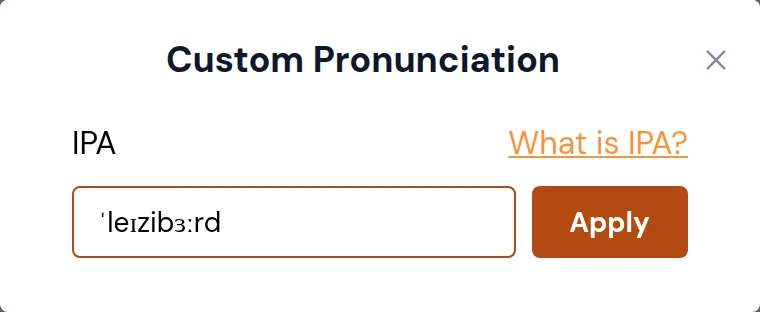 Example: if a dictionary shows `/ɪkˈspɪəriəns/`, enter `ɪkˈspɪəriəns`. Words with a custom pronunciation are underlined in the editor.
If you're not sure which IPA spelling to use, try a few options and keep the one that sounds best with your voice.
## Add pauses
Use pauses when you need more deliberate timing than punctuation gives you.
1. Click in the block where the pause should go.
2. In **Edit Block**, choose a length next to **Add Pause** (0.5s, 1s, 2s or 3s).
3. Click **Add**. A pause chip appears in the text.
4. Generate the block and listen to it.
Example: if a dictionary shows `/ɪkˈspɪəriəns/`, enter `ɪkˈspɪəriəns`. Words with a custom pronunciation are underlined in the editor.
If you're not sure which IPA spelling to use, try a few options and keep the one that sounds best with your voice.
## Add pauses
Use pauses when you need more deliberate timing than punctuation gives you.
1. Click in the block where the pause should go.
2. In **Edit Block**, choose a length next to **Add Pause** (0.5s, 1s, 2s or 3s).
3. Click **Add**. A pause chip appears in the text.
4. Generate the block and listen to it.
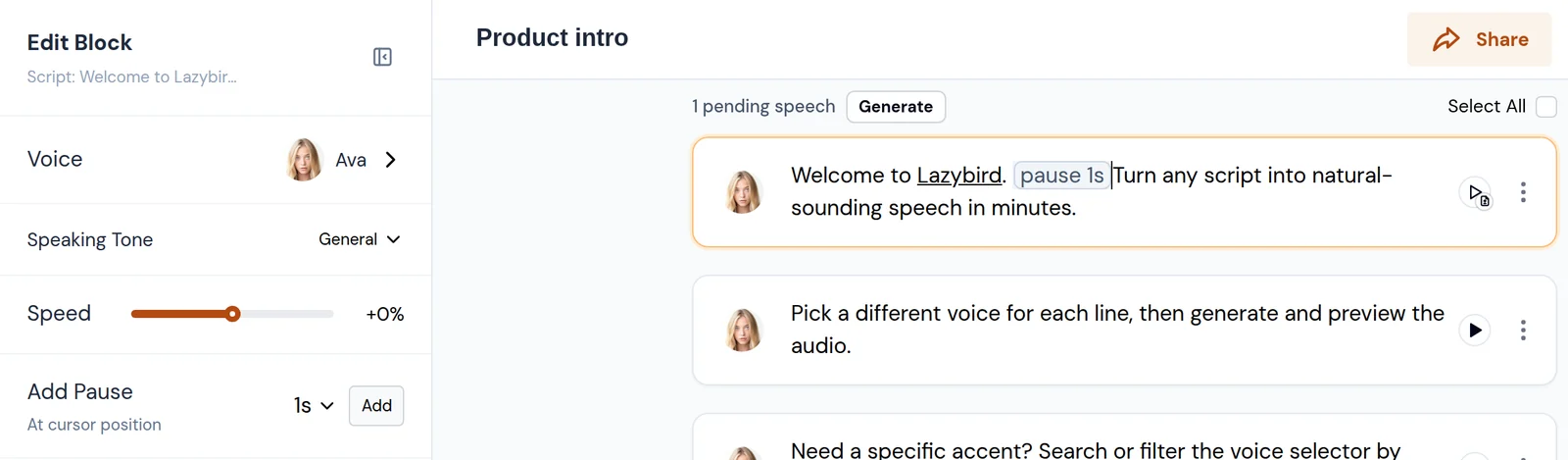 To add silence before or after a whole block, use **Structural Pauses** instead. Pauses help with intros, list items, dramatic emphasis, and narration that needs room between phrases.
## Import a script file
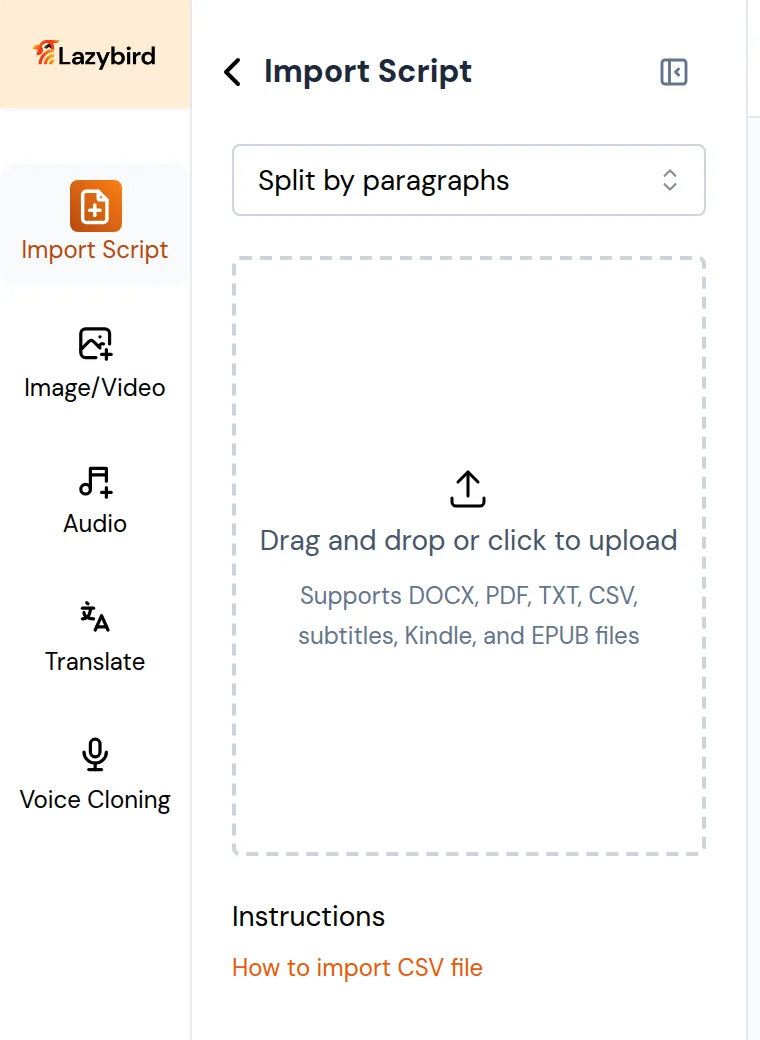
Use **Import Script** in the left sidebar when your script already exists in a document.
1. Choose how to split the text into blocks: by paragraphs, by sentences, by single or double separating lines, or **Automatic (Smart splitting)**.
2. Drag the file into the upload area, or click it to choose a file.
3. Review the imported blocks before generating audio.
Supported files: DOCX, PDF, TXT, CSV, subtitles, Kindle, and EPUB.
To add silence before or after a whole block, use **Structural Pauses** instead. Pauses help with intros, list items, dramatic emphasis, and narration that needs room between phrases.
## Import a script file
Use **Import Script** in the left sidebar when your script already exists in a document.
1. Choose how to split the text into blocks: by paragraphs, by sentences, by single or double separating lines, or **Automatic (Smart splitting)**.
2. Drag the file into the upload area, or click it to choose a file.
3. Review the imported blocks before generating audio.
Supported files: DOCX, PDF, TXT, CSV, subtitles, Kindle, and EPUB.
 ## Import a CSV
CSV import creates many blocks at once and can set the voice and settings for each one. Upload the CSV in the **Import Script** panel.
Example CSV: [import_sample.csv](https://cdn.lazybird.app/assets/import-sample-1778919431950.csv)
Supported CSV columns:
| Column | Purpose |
|---|---|
| `text` | Text for the script block |
| `voice` | Voice display name or voice ID |
| `settings_style` | Speaking tone/style. Leave empty to use the default. |
| `settings_pitch` | Pitch value from `0.5` to `2`. Default is `1`. |
| `settings_speed` | Speed value from `0.5` to `2`. Default is `1`. |
| `settings_volume` | Volume value from `0` to `2`. Default is `1`. |
Fill in `text` and `voice` on every row. The import stops if a voice name or ID isn't found. Leave the setting columns empty to use the defaults.
## Clone a voice
Voice cloning creates a voice from a short sample of someone speaking. Only clone your own voice, or a voice you have permission to use.
1. Click **Voice Cloning** in the left sidebar. The panel lists the voices you've cloned.
2. Click **Clone New Voice**.
3. Choose **Start recording** to record in the browser, or **Choose audio file** to upload an MP3, WAV, or OGG sample.
4. Preview the sample, then enter a name under **Name your voice**.
5. Click **Create voice**.
## Import a CSV
CSV import creates many blocks at once and can set the voice and settings for each one. Upload the CSV in the **Import Script** panel.
Example CSV: [import_sample.csv](https://cdn.lazybird.app/assets/import-sample-1778919431950.csv)
Supported CSV columns:
| Column | Purpose |
|---|---|
| `text` | Text for the script block |
| `voice` | Voice display name or voice ID |
| `settings_style` | Speaking tone/style. Leave empty to use the default. |
| `settings_pitch` | Pitch value from `0.5` to `2`. Default is `1`. |
| `settings_speed` | Speed value from `0.5` to `2`. Default is `1`. |
| `settings_volume` | Volume value from `0` to `2`. Default is `1`. |
Fill in `text` and `voice` on every row. The import stops if a voice name or ID isn't found. Leave the setting columns empty to use the defaults.
## Clone a voice
Voice cloning creates a voice from a short sample of someone speaking. Only clone your own voice, or a voice you have permission to use.
1. Click **Voice Cloning** in the left sidebar. The panel lists the voices you've cloned.
2. Click **Clone New Voice**.
3. Choose **Start recording** to record in the browser, or **Choose audio file** to upload an MP3, WAV, or OGG sample.
4. Preview the sample, then enter a name under **Name your voice**.
5. Click **Create voice**.
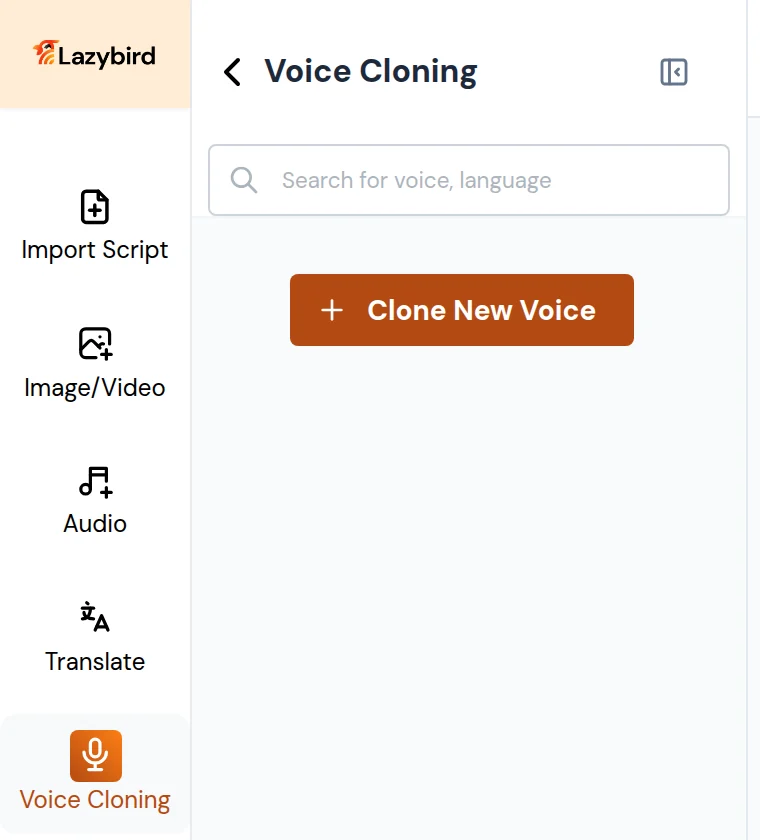
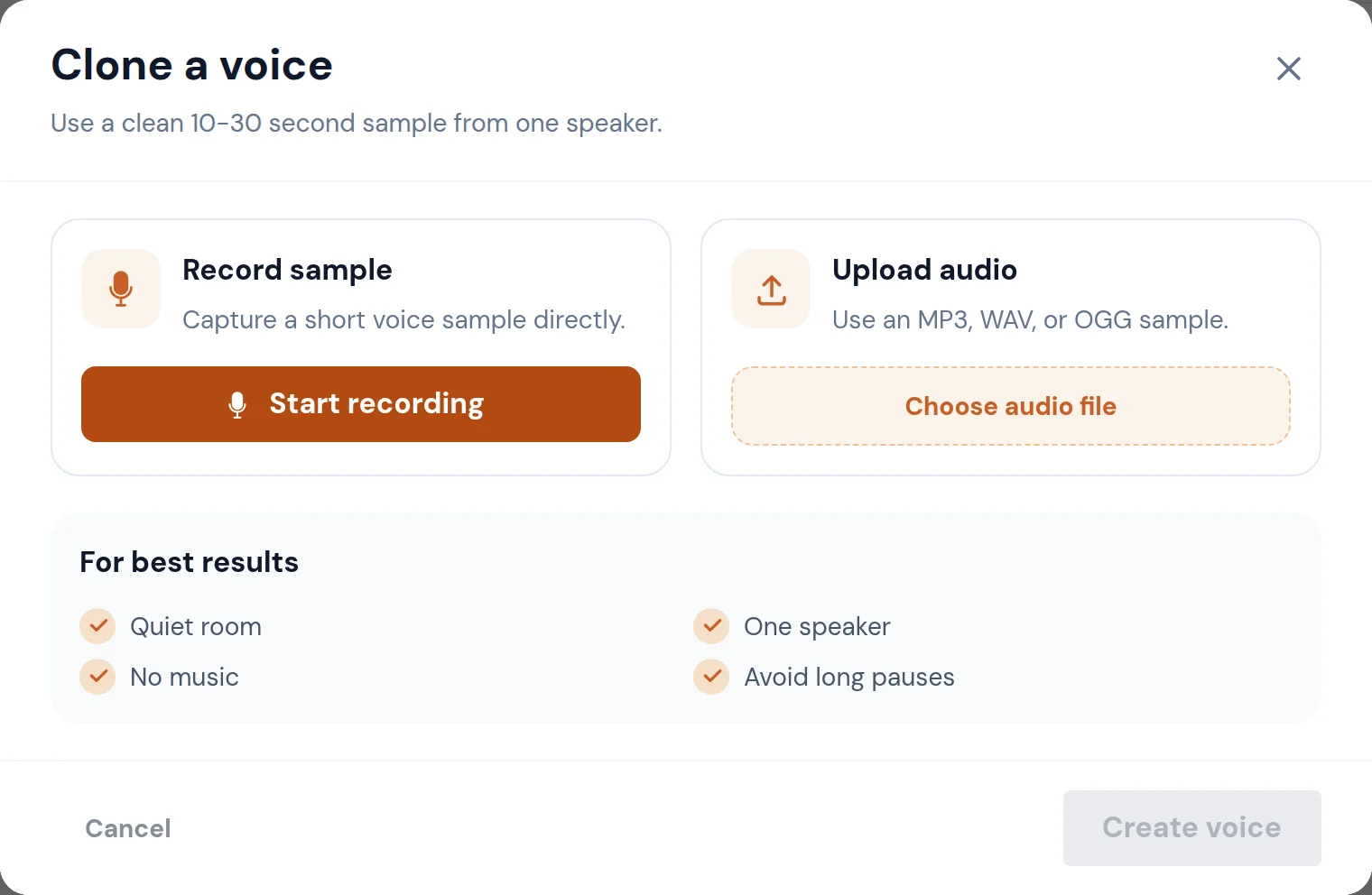 When the voice is ready, a notification lets you apply it to the selected block with **Use Voice**. Cloned voices also appear under **My Voices** in the voice selector. Use **⋮** on a clone's row to delete it, or choose **Edit** to change its name, description, avatar, language and labels, or to publish it.
For better cloning results:
- Use a clean 10-30 second sample from one speaker.
- Record in a quiet room, without music, background noise, or echo.
- Avoid long pauses.
- Use a clear microphone and speak naturally.
If cloned-voice output sounds wrong, regenerate first. If the problem repeats, record a cleaner sample and clone again.
## Supported languages
Lazybird supports many languages and accents. To find voices for one, use the **Language** filter in the voice selector, or type the language into the search box (for example `Greek`). See [Filter voices](#filter-voices).
If a voice reads text in the wrong accent, set **Advanced › Language / Accent** for that block.
## Add media
Use the sidebar panels to add more than narration:
- **Audio:** your uploads, or **Stock Music** you can search or browse by mood and genre.
- **Image/Video:** your uploads, or **Stock Images** and **Stock Videos**.
When the voice is ready, a notification lets you apply it to the selected block with **Use Voice**. Cloned voices also appear under **My Voices** in the voice selector. Use **⋮** on a clone's row to delete it, or choose **Edit** to change its name, description, avatar, language and labels, or to publish it.
For better cloning results:
- Use a clean 10-30 second sample from one speaker.
- Record in a quiet room, without music, background noise, or echo.
- Avoid long pauses.
- Use a clear microphone and speak naturally.
If cloned-voice output sounds wrong, regenerate first. If the problem repeats, record a cleaner sample and clone again.
## Supported languages
Lazybird supports many languages and accents. To find voices for one, use the **Language** filter in the voice selector, or type the language into the search box (for example `Greek`). See [Filter voices](#filter-voices).
If a voice reads text in the wrong accent, set **Advanced › Language / Accent** for that block.
## Add media
Use the sidebar panels to add more than narration:
- **Audio:** your uploads, or **Stock Music** you can search or browse by mood and genre.
- **Image/Video:** your uploads, or **Stock Images** and **Stock Videos**.
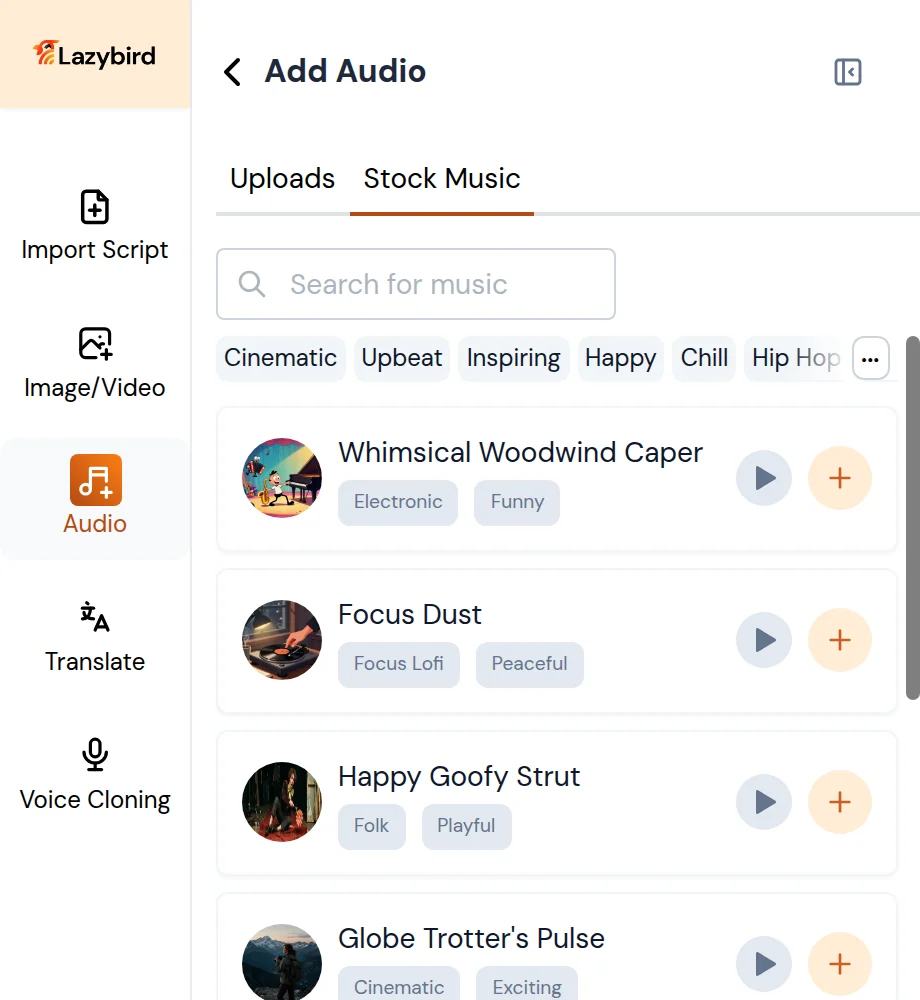 Add media when you're making a video, presentation, or social clip rather than plain narration. Projects with images or video can be exported as video.
## Translate a project
1. Click **Translate** in the left sidebar.
2. Choose the **Target Language**.
3. Choose the **Default Voice** for the translated script.
4. Click **Translate**.
Add media when you're making a video, presentation, or social clip rather than plain narration. Projects with images or video can be exported as video.
## Translate a project
1. Click **Translate** in the left sidebar.
2. Choose the **Target Language**.
3. Choose the **Default Voice** for the translated script.
4. Click **Translate**.
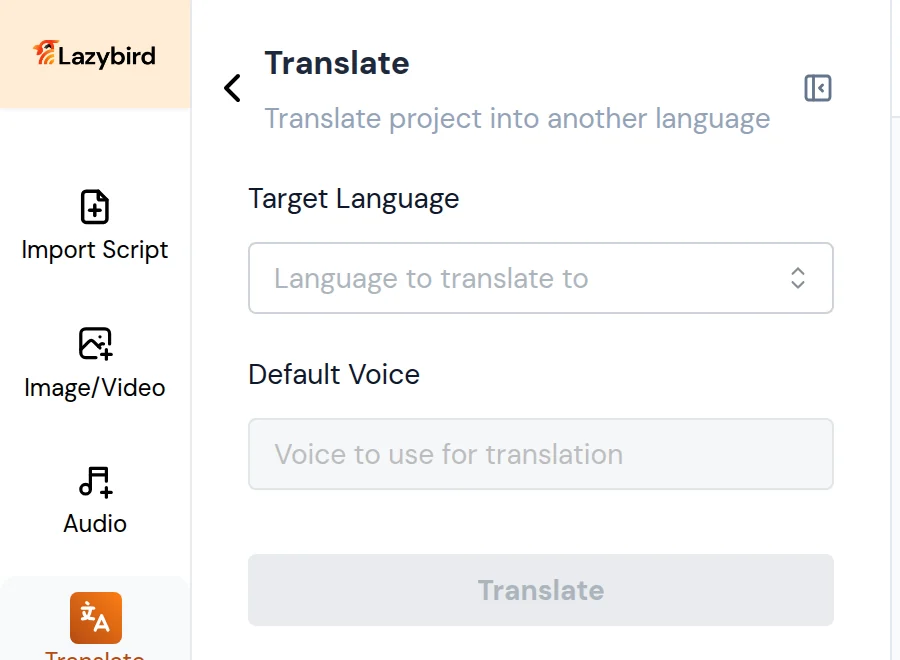 Lazybird creates a translated copy of the project and opens it. Your original project isn't changed. Review the translated script before generating final audio, especially names, technical terms, product copy, and legal or medical content.
## Export your project
1. Click **Export** at the top right.
2. If some blocks have no audio yet, click **Generate All**. **Export Anyway** exports without them.
3. Choose what to export:
- **Video:** MP4 in Landscape (1920×1080), Portrait (1080×1920), or Square (1080×1080). Available when the project has images or video.
- **Audio:** MP3, WAV, or OGG.
- **Transcript:** TXT, DOCX, SRT, or VTT.
4. Click the export button and download the file when it's ready.
Lazybird creates a translated copy of the project and opens it. Your original project isn't changed. Review the translated script before generating final audio, especially names, technical terms, product copy, and legal or medical content.
## Export your project
1. Click **Export** at the top right.
2. If some blocks have no audio yet, click **Generate All**. **Export Anyway** exports without them.
3. Choose what to export:
- **Video:** MP4 in Landscape (1920×1080), Portrait (1080×1920), or Square (1080×1080). Available when the project has images or video.
- **Audio:** MP3, WAV, or OGG.
- **Transcript:** TXT, DOCX, SRT, or VTT.
4. Click the export button and download the file when it's ready.
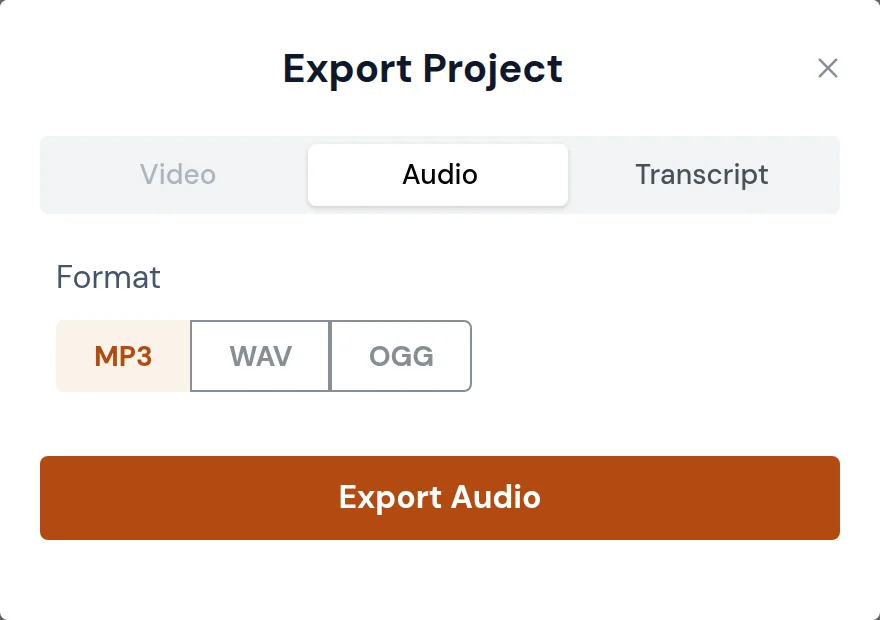 Your past exports are listed under the history icon next to **Export**. To show the project to someone else, click **Share** and copy the link. It opens a read-only view of the project.
## Manage account and API keys
- Click **Account** (bottom left in the editor, or your avatar on the Projects screen) to reach your account and subscription settings.
- For API access, open **Developer** from the Studio sidebar to create API keys, then follow the [API Reference](https://www.lazybird.app/docs/api-reference).
Keep API keys private. Don't post them publicly or put them in client-side code.
Your past exports are listed under the history icon next to **Export**. To show the project to someone else, click **Share** and copy the link. It opens a read-only view of the project.
## Manage account and API keys
- Click **Account** (bottom left in the editor, or your avatar on the Projects screen) to reach your account and subscription settings.
- For API access, open **Developer** from the Studio sidebar to create API keys, then follow the [API Reference](https://www.lazybird.app/docs/api-reference).
Keep API keys private. Don't post them publicly or put them in client-side code.