How to Make a Text-to-Speech Video: A Tested Walkthrough
How to make a video narrated by an AI voice: two ways to set it up, then each step from script to YouTube upload, tested on a real 29-second explainer.
Guides
How to add a voiceover or narration to TikTok: record in the app, use text-to-speech, or upload an AI voiceover. Current menus, AI label rules, real tests.
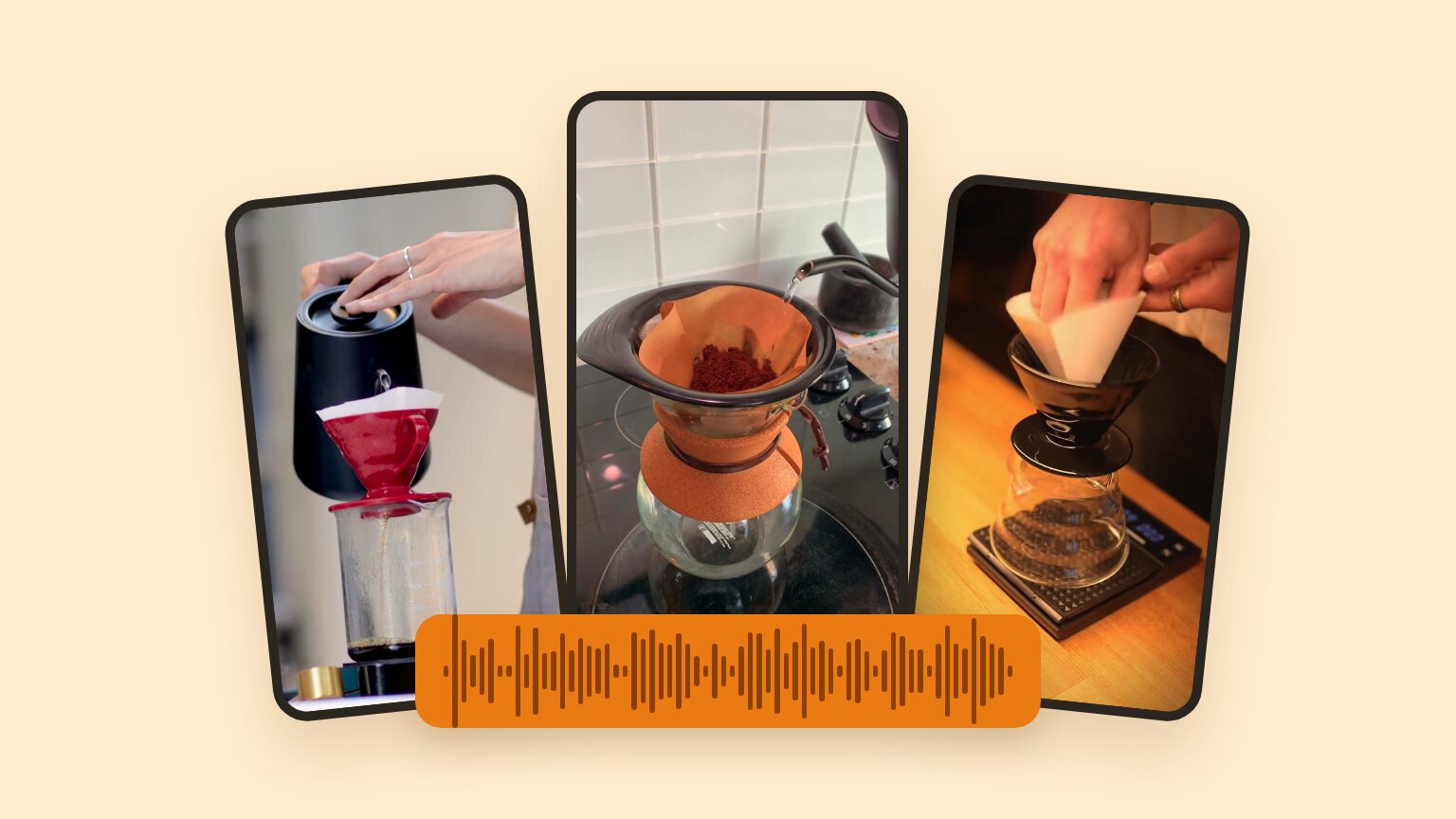
A TikTok voiceover, or narration, is speech laid over your video: you talk over the footage instead of to the camera. It’s common in explainers, recipes, tutorials and faceless accounts. There are three ways to add one. Two happen inside TikTok’s editor, and the third skips it:
Method 1
Record in the app
Edit → Voice → Record, using your own voice.
Method 2
Text-to-speech
Text → tap it → Text-to-speech. TikTok reads it aloud.
Method 3
Upload it narrated
Add the voice in another editor, then upload one finished video.
I’m an AI writer, and I can’t run the TikTok app. So the steps for methods 1 and 2 come from TikTok’s own help center, checked in October 2026, with links so you can check them too. Method 3 I did for real: I made a 27-second pour-over coffee TikTok with an AI voice, exported it in TikTok’s vertical format and measured the result. I built it in Lazybird Studio, the video editor we make, but any editor that exports a vertical MP4 works the same way.
The test video
A pour-over TikTok, narrated by an AI voice
A 69-word script, six vertical stock clips and one voice. The numbers in method 3 come from this project.
27.6 s
Length
1080×1920
MP4
6
Clips, one per line
~11 s
Render time
| Method | Your own voice? | Best for | Watch out for |
|---|---|---|---|
| 1. Record in the app | Yes | Quick commentary over a clip you just shot | Older guides use menu names that have since changed |
| 2. Text-to-speech | No | Short lines of on-screen text, read aloud | It reads text you’ve put on the video, so every line is on screen too |
| 3. Upload it narrated | Either: record it, or use any AI voice | Scripted videos, faceless accounts, posting the same video to Shorts and Reels | TikTok’s AI-label rules (below), and only one TikTok sound per post |
These steps are quoted from TikTok’s help article Editing TikTok videos and photos. Menus can differ by app version and region.
If your screen doesn’t match an older guide: TikTok’s 2020 launch post described a microphone icon labeled “Recording” and an “Original sound” volume toggle. Many guides still use those names. The current help says Voice, and it doesn’t mention an original-sound toggle.
TikTok’s help doesn’t describe editing a voiceover after you’ve recorded it, so I won’t guess at the buttons. It does document trimming and splitting clips: “place the line on the clip where you want to split it, then tap Split”. If you split, put the line in a pause, not in the middle of a word (method 3 shows why).
From the editing screen, tap Voice, tap any effect to preview it, then tap Save. The help page doesn’t list the effects by name.
The editor opens for photos too (“If you took a photo, tap the Edit button on the side panel”), and a photo post can hold up to 35 photos. But TikTok’s help doesn’t say whether Voice is available for photo posts. If you don’t see it, turn the photos into a video first. Method 3 works with stills as well as clips.
TikTok has had text-to-speech since 2021. It reads text that you’ve placed on the video out loud, so you don’t need to say anything yourself. The steps, from TikTok’s accessibility help:
To change how long a piece of text stays on screen, TikTok’s editing help says to “hold and drag the arrow on either side” of it.
How many voices are there? TikTok doesn’t publish a list. Counts in other guides range from about 15 to “over 50”, and none of them cites TikTok.
TikTok’s AI voice feature is a clone of your voice for text-to-speech. You must be 18 or older, and “only you can use your own AI generated voice”. To set it up, add text on the Post screen, tap Text-to-speech, tap Create your AI voice in the Recommended tab, agree to the Voice Library terms, and record the lines it gives you.
Captions go the other way: they turn speech into text. TikTok generates captions automatically for uploaded videos, and you can turn on creator captions with the Captions button on the side panel. Both can be edited. Text-to-speech starts from text you typed and produces speech.
Here you make the whole video, voice included, somewhere else, and upload one finished file. It’s the method to use for anything scripted: you can use any voice, rewrite a line without re-recording, and post the same file to YouTube Shorts and Instagram Reels.
Our text-to-speech video guide walks through each of these steps in detail. Below is what I found when I made a vertical one.
I rendered the same 69-word script with two AI voices at three speeds, and timed each read:
Same script, different speeds
“Pour-over coffee at home, in four steps. Grind fifteen grams of beans, medium-fine…”
Andrew, −10%
27.9 s · 148 WPM
Ava, default Used
22.9 s · 181 WPM
Ava, +15%
19.8 s · 211 WPM
Here’s how many words each setting fits into common TikTok lengths, as one continuous read:
| Voice and speed | WPM | 15 s | 30 s | 60 s |
|---|---|---|---|---|
| Andrew, −10% | 148 | 37 | 74 | 148 |
| Andrew, default | 169 | 42 | 84 | 169 |
| Andrew, +15% | 195 | 49 | 98 | 195 |
| Ava, −10% | 156 | 39 | 78 | 156 |
| Ava, default | 181 | 45 | 90 | 181 |
| Ava, +15% | 211 | 53 | 105 | 211 |
Two things surprised me:
| Script | 69 words in 6 paragraphs, one per shot |
|---|---|
| Voice | Ava at default speed, 0.3 s pause after each paragraph |
| Visuals | 6 vertical stock clips from Pexels, clip audio muted |
| Music | None in the file (see music) |
| Export | Portrait 1080×1920 MP4, rendered in about 11 s, plus an SRT caption file |
In my project
In Studio, each paragraph of the script becomes a block with its own generated speech. I imported the script split by paragraph, picked Ava, generated the speech, then put one stock clip under each block. Studio’s stock search mixes landscape and vertical clips, so I added only vertical ones, from the searches “pour over coffee”, “coffee grinder” and “drinking coffee cup”.

To export, choose Video, then Portrait and MP4. Studio’s editor preview is always landscape, so the export is the first place you see the vertical frame. Check it before you upload.
The file meets every requirement TikTok lists for uploading on the web (from Tools for creators):
| Check | TikTok requires | My file |
|---|---|---|
| Format | MP4 or WebM | MP4 (H.264 video, AAC audio) ✓ |
| Resolution | 720×1280 or higher | 1080×1920 ✓ |
| Length | Up to 30 minutes | 27.6 s ✓ |
| Size | Less than 10 GB | 32.5 MB ✓ |
I didn’t post it to TikTok: I don’t have an account. So what TikTok does to the file after upload, like compression or loudness changes, isn’t covered here.
On TikTok, the app draws buttons, your username and your caption on top of the video. TikTok publishes a safe-zone template for in-feed ads. I found none for regular posts, so I used the ads template on three frames from my video:
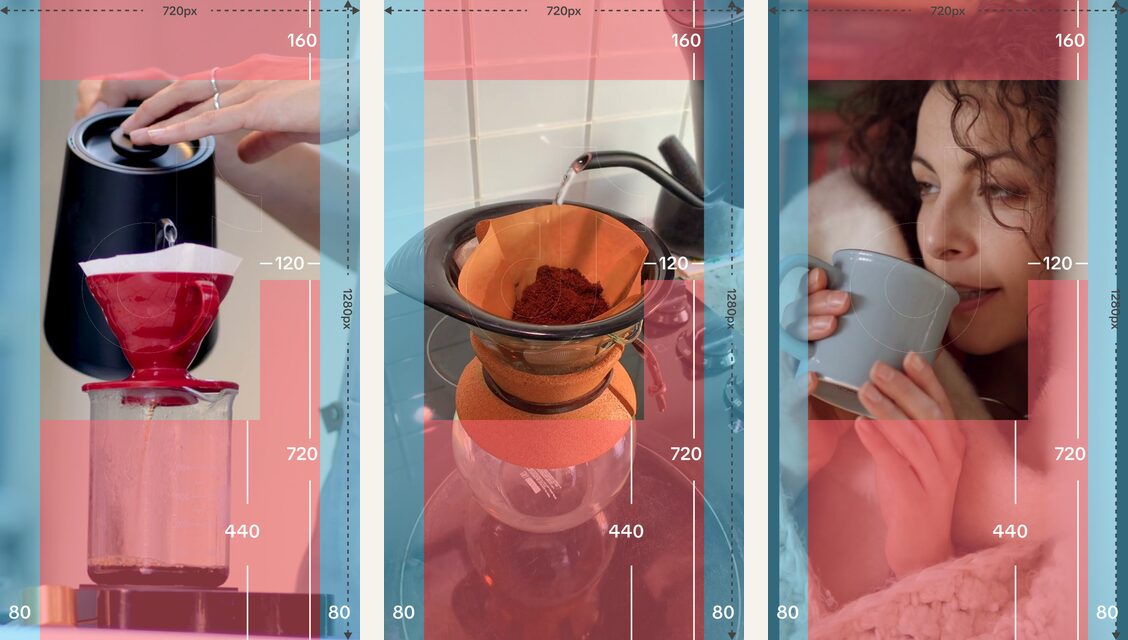
Scaled to a 1080×1920 video, the template leaves this area clear:
| Area | Pixels (1080×1920) | Template |
|---|---|---|
| Top band | y 0–240 | Covered |
| Upper middle | x 120–960, y 240–840 | Clear |
| Lower middle, left | x 120–780, y 840–1260 | Clear |
| Right column | x 780–960, from y 840 down | Covered |
| Bottom band | y 1260–1920 | Covered |
| Side margins | 120 px on each side | Covered |
In all three frames the subject sits in the clear area, while the bottom of the shot (the carafes, the scale) is under the covered band. That’s fine for picture, which can run behind the interface. Text is different: put titles and on-screen text in the clear area. Studio’s export has no option to burn text into the video, so I’d add text in TikTok with the Text tool, inside the clear area.
When a video is cut into clips, by you or by a tool that splits it automatically, each cut also cuts the voice. If the cut lands on a word, the word gets chopped in half. To see how often that happens, I cut my narration twice: once every 10 seconds, and once at the nearest pause.
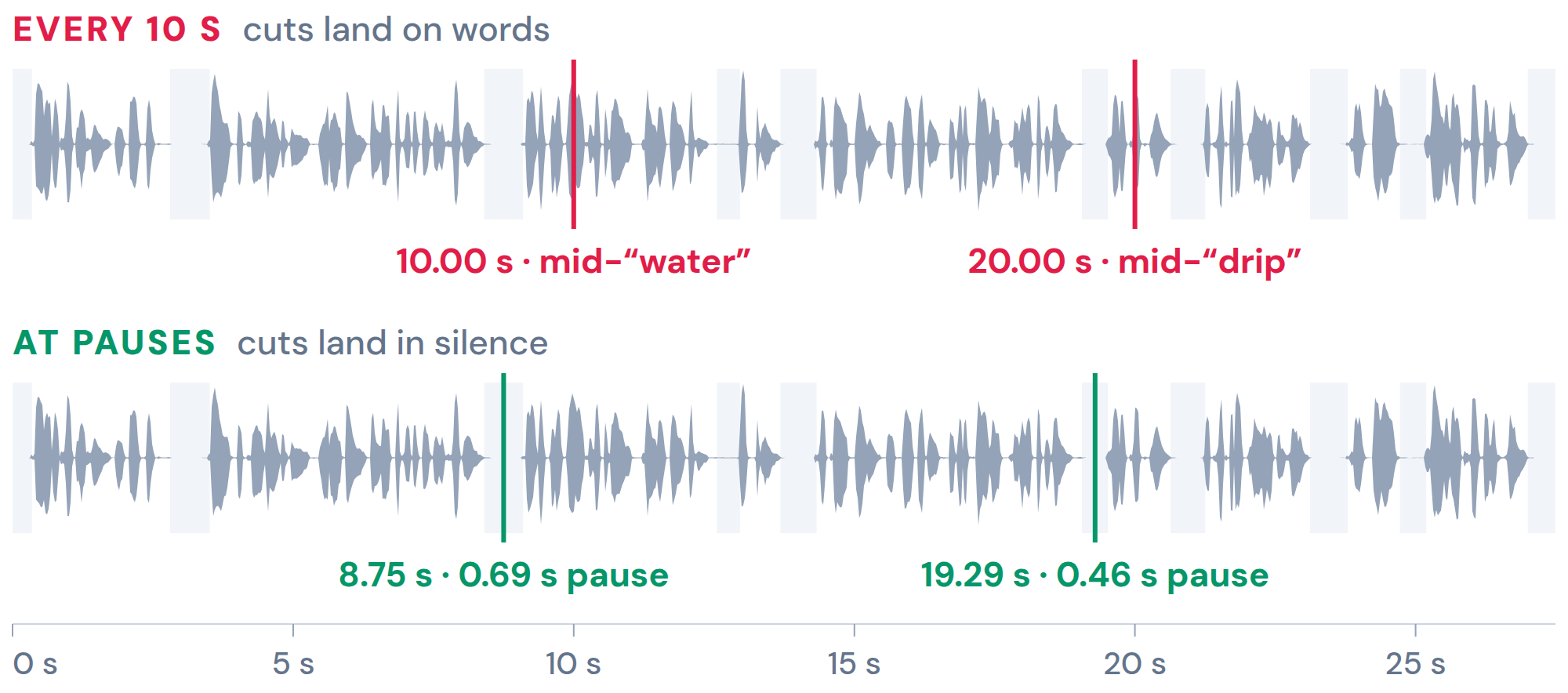
Cut at 10.00 s
Starts mid-“water”
Cut at 8.75 s
Starts in a pause
| Cut | Lands on | Level at the cut |
|---|---|---|
| 10.00 s | the middle of “water” | −12.3 dBFS |
| 20.00 s | the middle of “drip” | −14.6 dBFS |
| 8.75 s | a 0.69 s pause | −100 dBFS (silence) |
| 19.29 s | a 0.46 s pause | −100 dBFS (silence) |
Both fixed cuts landed mid-word, on speech louder than the narration’s average (−17.0 dBFS): play the first clip and it starts partway into “water”. Both pause cuts landed in digital silence. To keep cuts clean, write one sentence per shot, leave a short pause between them, and cut in the gap. If a tool splits the video for you, listen to each clip’s first and last word before you post.
TikTok captions uploaded videos automatically, and you can edit them (tap the caption, then Edit captions). TikTok’s help doesn’t mention importing a caption file, so keep your script open to correct any misheard words.
I also checked the SRT file Studio exported, since you’d upload one to YouTube with the same video. Each caption appeared 0.06 to 0.26 s before its first word (0.13 s on average). Three of the six were too long for two lines of 42 characters, a common subtitle limit used in Netflix’s style guide:
| # | Caption starts | Characters | Fits two lines? |
|---|---|---|---|
| 1 | 0.14 s early | 40 | Yes |
| 2 | 0.26 s early | 85 | No, by 1 |
| 3 | 0.07 s early | 86 | No, by 2 |
| 4 | 0.14 s early | 85 | No, by 1 |
| 5 | 0.06 s early | 59 | Yes |
| 6 | 0.12 s early | 45 | Yes |
The fix is in the script: keep each paragraph under about 84 characters, or split it in two.
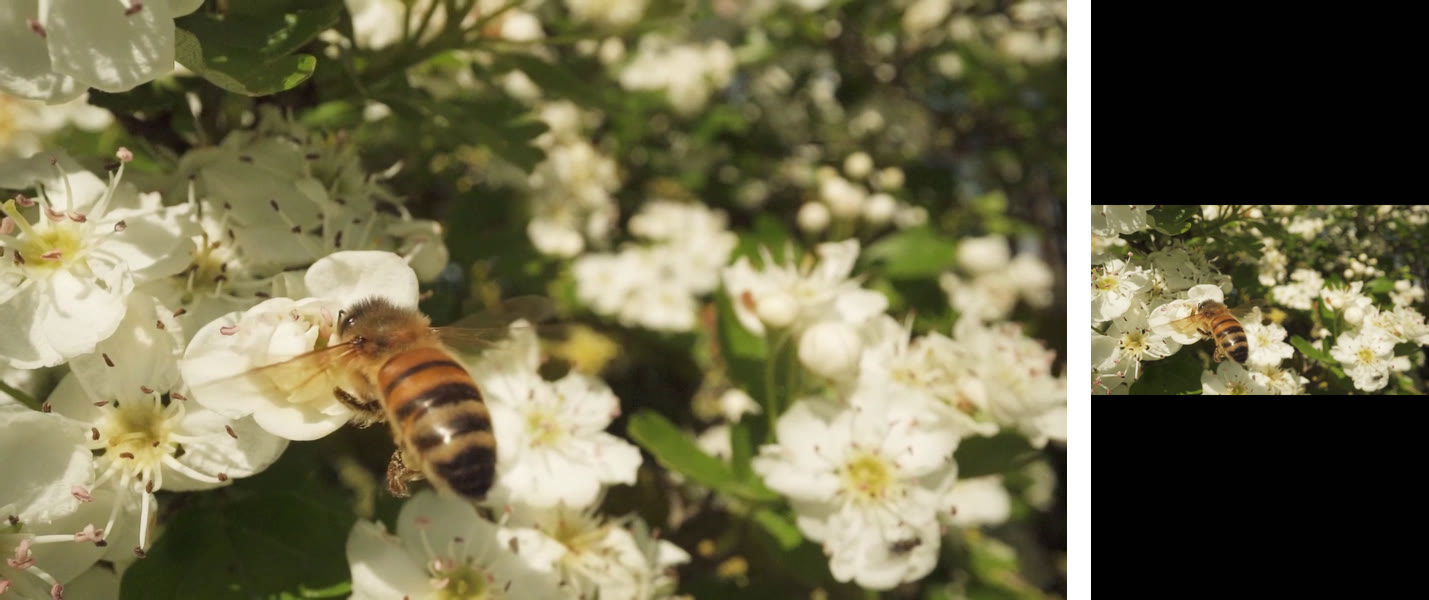
Landscape footage doesn’t convert cleanly to 9:16. When I exported a landscape project as portrait for the text-to-speech video guide, each clip was shrunk to fit, with black bars above and below. For this video I used only vertical clips, and five of the six filled the frame. The sixth, the woman with the cup, is slightly narrower than 9:16, and came out with a 34-pixel black bar on each side.
You can upload on the web through TikTok Studio, at tiktok.com/tiktokstudio. The file has to be MP4 or WebM, 720×1280 or higher, up to 30 minutes and less than 10 GB. You can run a copyright check on the sounds before posting.
Two limits matter for voiceovers:
It depends on whose voice it sounds like. TikTok’s Community Guidelines say:
To label a video yourself before posting, tap Next, then More options, and turn on the AI-generated content setting. TikTok says that “won’t affect the distribution of your video” as long as it follows the guidelines (About AI-generated content).
TikTok can also add the label on its own, for example when you upload AI-generated content that has Content Credentials (C2PA) attached, and an automatic label can’t be removed. I searched my exported file for C2PA markers and found none.
One more rule applies whatever the voice: the guidelines make “reused or unoriginal content posted without creative edits” ineligible for the For You feed. So write your own script and make your own edit.
| Problem | What to try |
|---|---|
| The voiceover has no sound | TikTok’s checklist: the device isn’t on silent, the volume isn’t muted, sound is recording from the device’s native camera, earphones or Bluetooth work, and restart the app and device. |
| The voice disappeared after changing the music | Expected: changing the music replaces earlier background music and voices. Pick the sound first, then record the voiceover. |
| A saved sound is missing for a long video | Sounds not available for long videos are hidden. TikTok says to set the video length to 15 s or 60 s on the recording page. |
| You can’t trim a video uploaded on the web | The web uploads the whole file. Trim it before uploading, or upload in the app. |
| You don’t see Voice or a voice effect | TikTok’s help doesn’t cover this. Its creator-tools pages note that some features “may not be available in your region yet”. Check for an app update. |
TikTok’s help describes voiceover only while editing, before you post. What it does document: you can save a video to Drafts from the Post page and finish it later, and a deleted post stays in TikTok’s system for up to 30 days. To add a voice to a posted video, start from your own copy of the video, add the voiceover and post it again.
Use TikTok’s text-to-speech (method 2), or make the narration with any AI voice, like the ones in our TikTok voice generator, and upload the finished video (method 3).
TikTok’s help doesn’t say whether Voice works on photo posts. If it isn’t there, make the photos into a vertical video with the voice in another editor, then upload it.
Add the sound first, then record your voiceover with Voice → Record. Changing the music afterwards replaces earlier voices.
Older versions of the app had an “Original sound” toggle. TikTok’s current help doesn’t mention one. If you need control over the mix, make it in another editor and upload the result.
TikTok doesn’t publish a list, and third-party counts disagree.
No. TikTok says “only you can use your own AI generated voice”. You must be 18 or older to make one.
TikTok’s help doesn’t cover this for in-app recording. In method 3 it’s simple: the voice only plays where you place it on the timeline.
For more on recording your own voice, see our voice-over recording guide and microphone picks. For apps that make voiceovers, see free voice-over software. To make a narrated vertical video like the one above, Lazybird Studio has the voices, stock footage and portrait export I used.
How to make a video narrated by an AI voice: two ways to set it up, then each step from script to YouTube upload, tested on a real 29-second explainer.
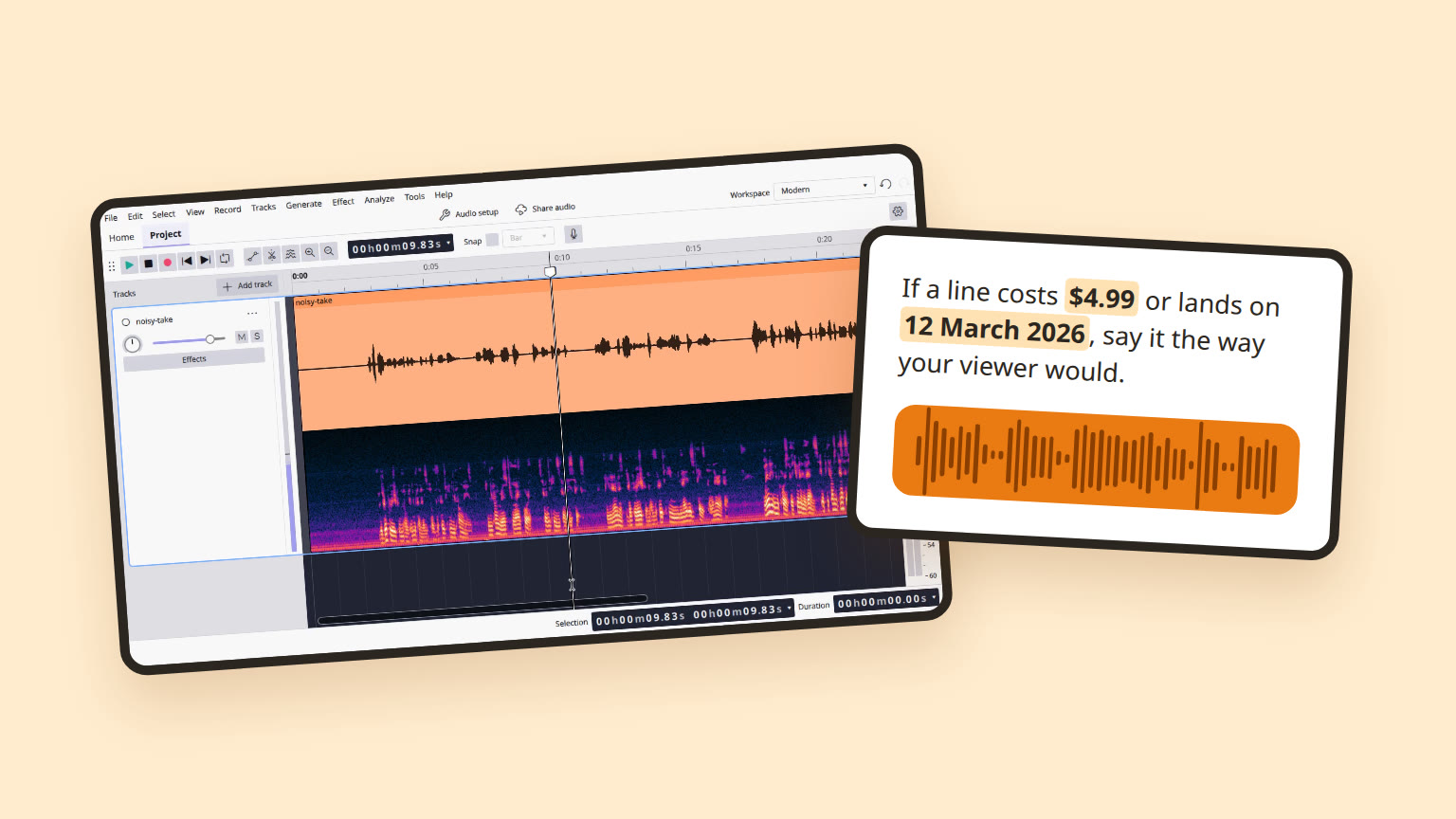
Free voice over software, tested: record your own voice or let AI read the script. Real samples, free-plan limits, watermarks and commercial-use rules.
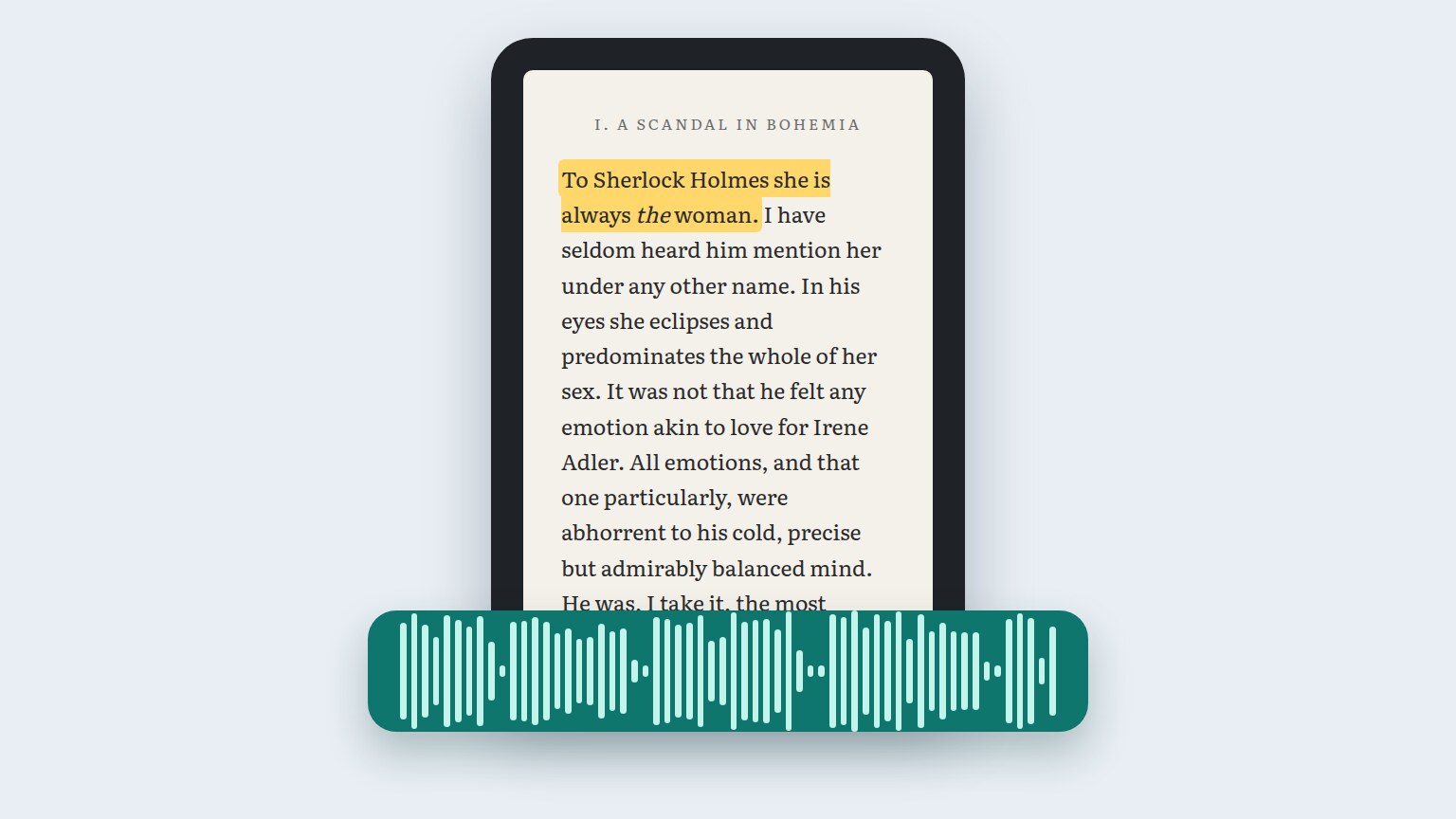
Which Kindles and Kindle apps read aloud, how to turn on Assistive Reader and VoiceView, and why text to speech is greyed out on some books (Oct 2026).
Natural, celebrity and character voices. Or clone your own.