Free Voice Over Software: Recorders and AI Voices, Tested
Free voice over software, tested: record your own voice or let AI read the script. Real samples, free-plan limits, watermarks and commercial-use rules.
Guides
Step-by-step guide to turn off text to speech on any device. Covers Android (TalkBack), iPhone (VoiceOver & Spoken Content), Windows 11/10 (Narrator), Mac, Samsung, Xiaomi, Motorola, and Chromebook — with keyboard shortcuts and screenshots.
Updated April 2026 · Step-by-step for every major device and OS
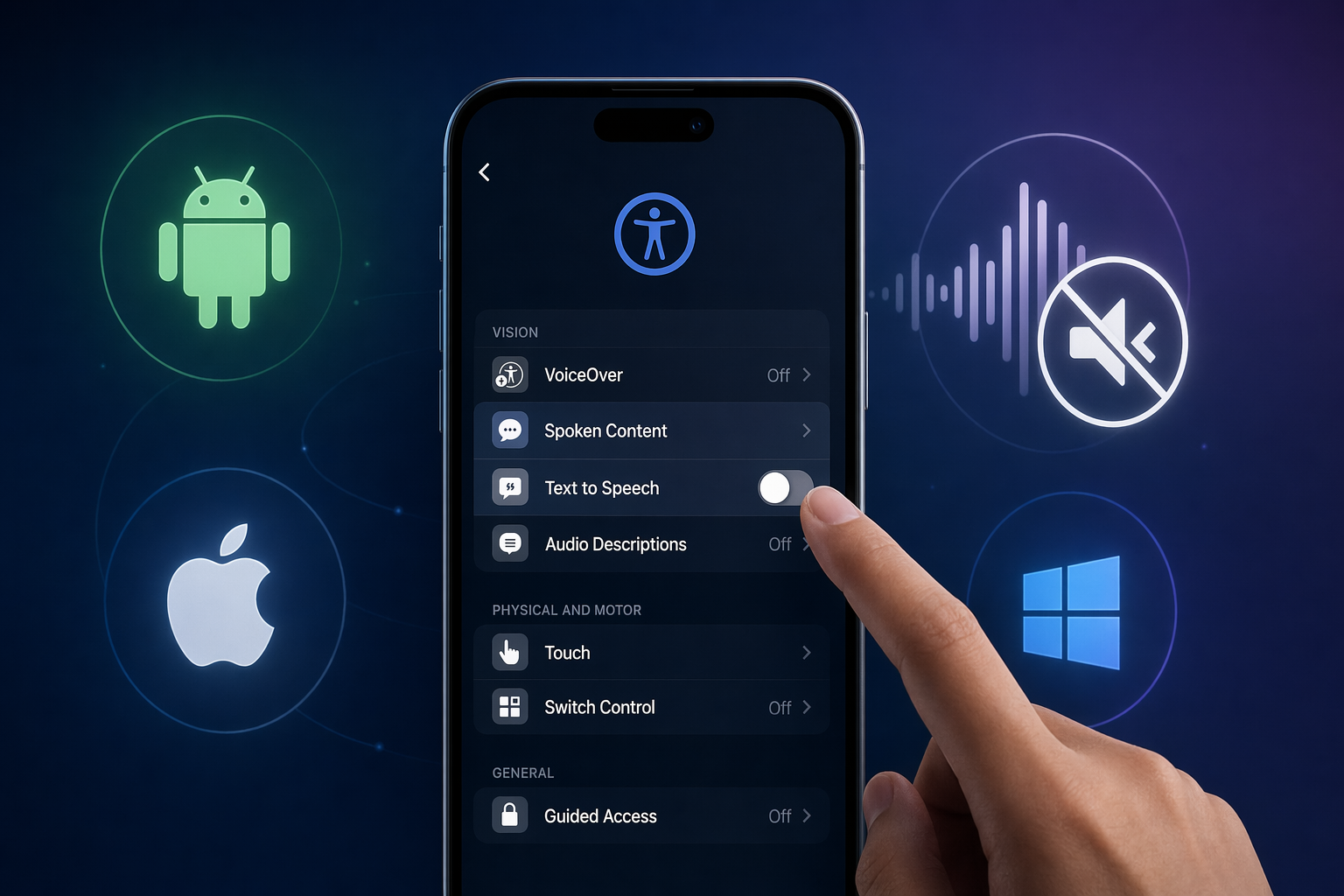
To turn off text to speech, go to Settings > Accessibility on your device and disable TalkBack (Android), VoiceOver or Spoken Content (iPhone), or Narrator (Windows). The exact steps vary by platform — use the shortcuts below to jump to yours.
Jump to your device:
Android has two separate text-to-speech features. TalkBack is the full screen reader that reads everything on screen. Select to Speak only reads content you tap or highlight. Here's how to turn off both.
Heads up: When TalkBack is active, you need to double-tap to open things and use two-finger swipes to scroll. The steps below assume TalkBack is already active.
Faster method — Volume shortcut: Hold the Volume Up + Volume Down buttons simultaneously for 3 seconds. Works if the TalkBack shortcut was previously enabled.
Even faster: Say "Hey Google, turn off TalkBack."
Note for Samsung, Xiaomi, or Motorola users: Each brand uses slightly different menu paths. See the dedicated sections below — Samsung, Xiaomi, Motorola.
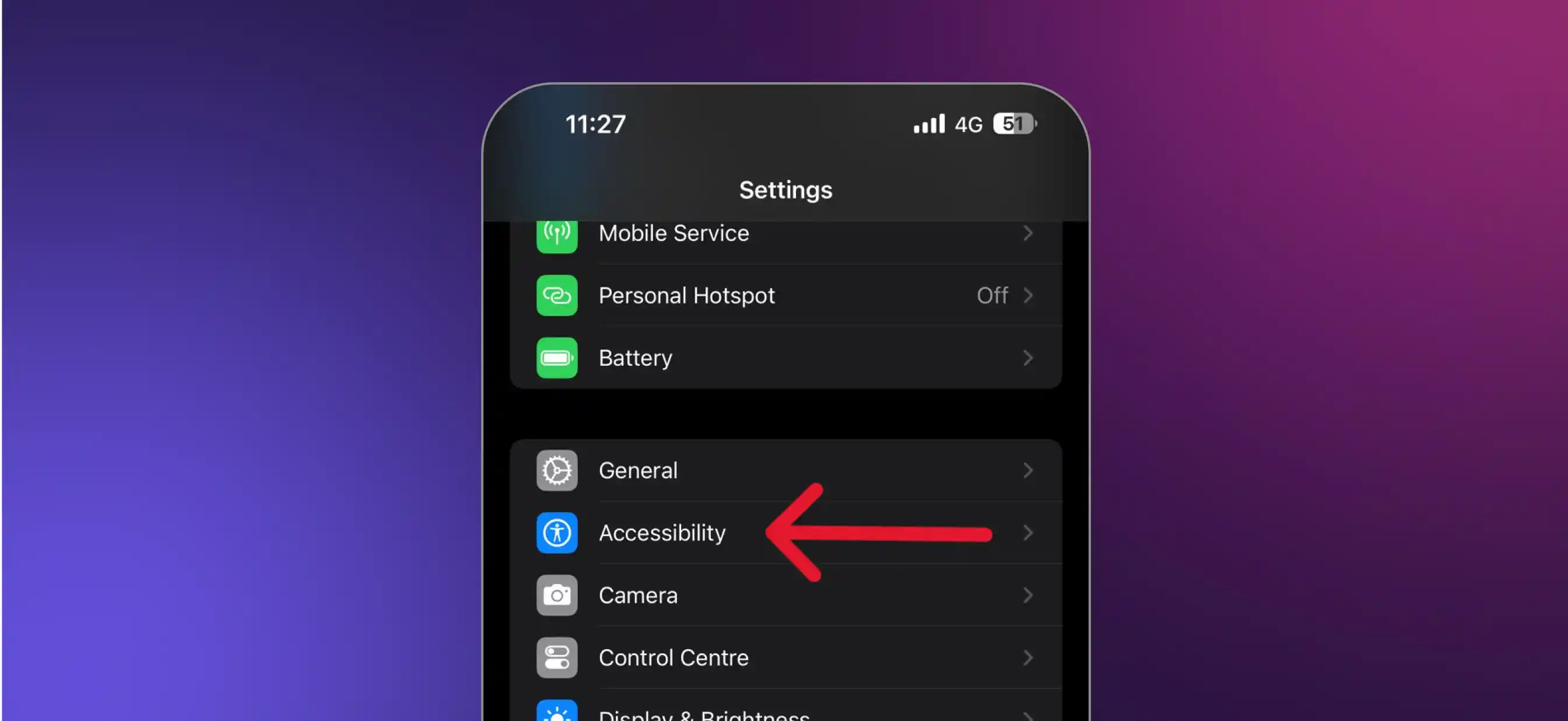
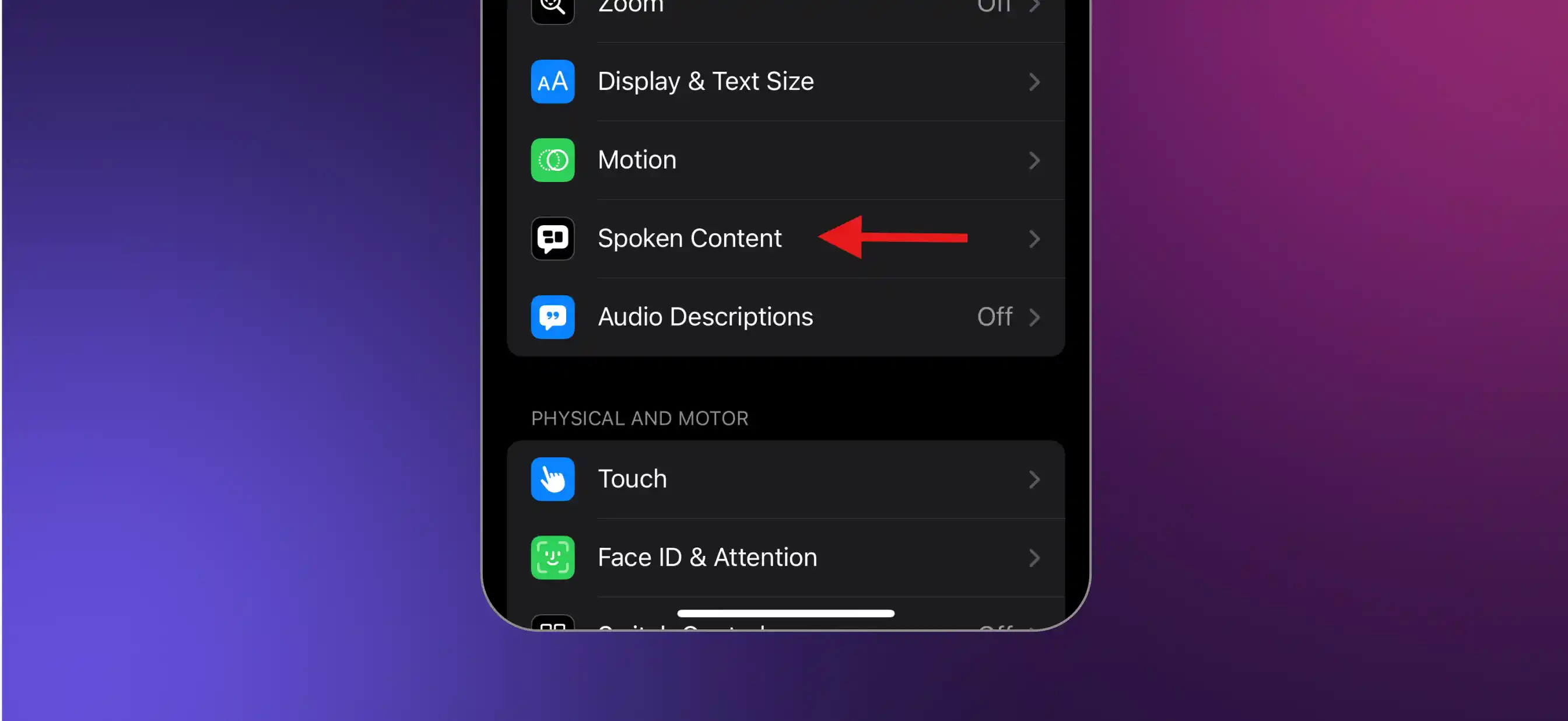
iOS has two different features: VoiceOver (full screen reader, reads everything) and Spoken Content (reads selected or on-screen text when triggered). Most people who are annoyed by accidental readouts need to turn off Spoken Content.
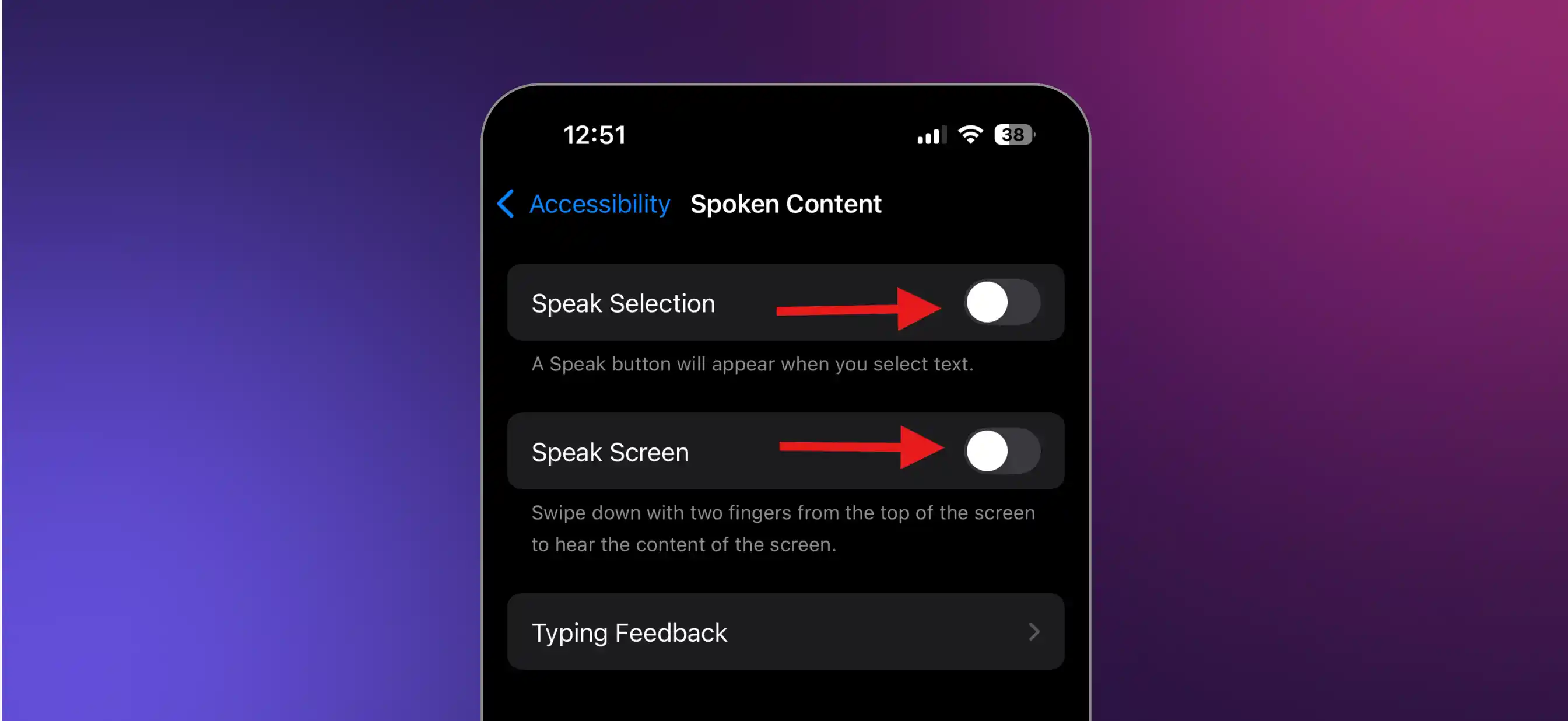
What's the difference?
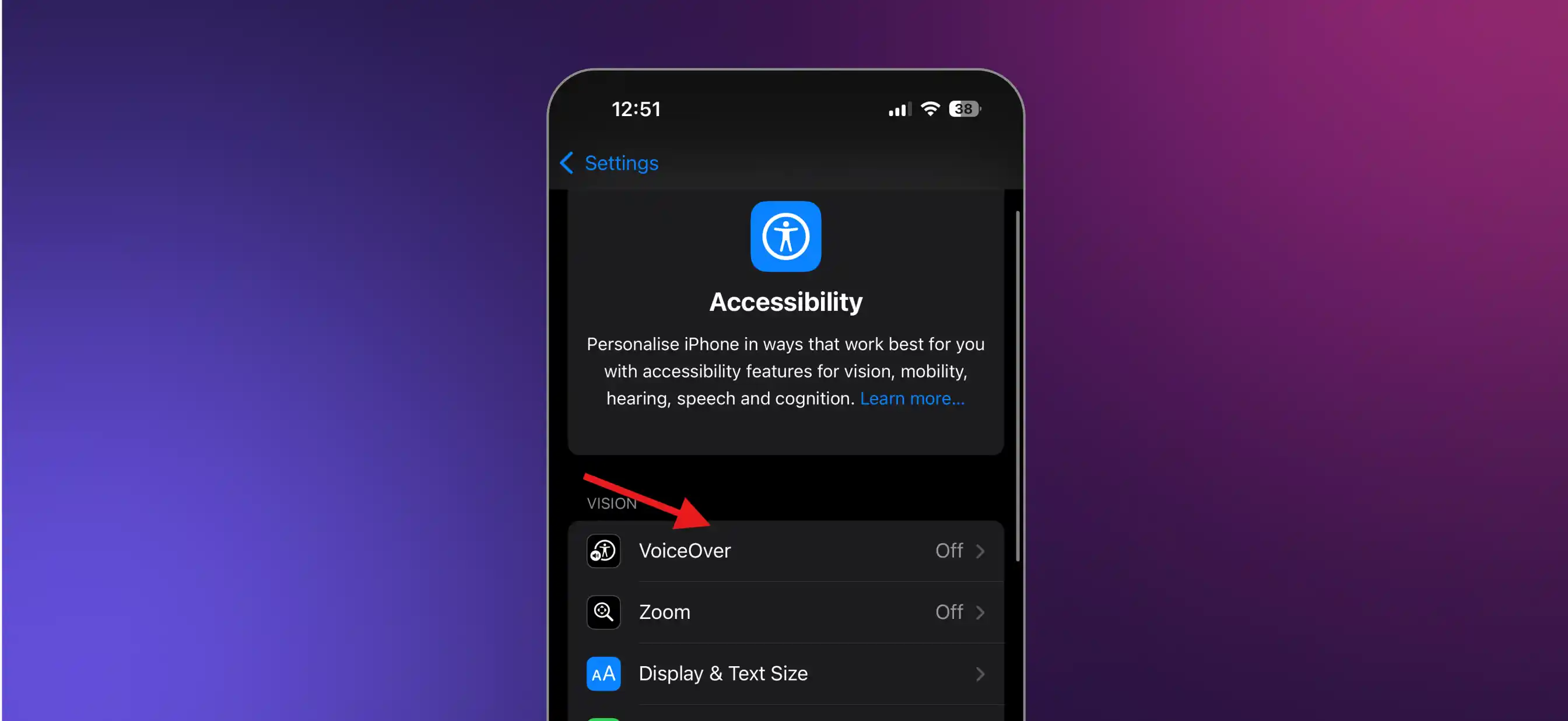
Quick method: Triple-click the Side button (or Home button on older iPhones) if VoiceOver is set as your Accessibility Shortcut.
Or ask Siri: "Hey Siri, turn off VoiceOver."
To stop accidental re-enabling: Go to Settings > Accessibility > Accessibility Shortcut and remove VoiceOver from the list.
Fastest method — keyboard shortcut: Press Win + Ctrl + Enter to instantly toggle Narrator off.
For a permanent fix:
Stop it from starting automatically: In the same Narrator settings, uncheck:
Keyboard shortcut: Same as Windows 11 — Win + Ctrl + Enter
Stop it from auto-starting: In Narrator settings, uncheck:
Important for 2025–2026 users: In macOS Ventura and later (including Sonoma and Sequoia), Apple renamed "Spoken Content" to "Read & Speak" in System Settings. If you're on an older macOS, look for "Spoken Content" or "Speech" instead.
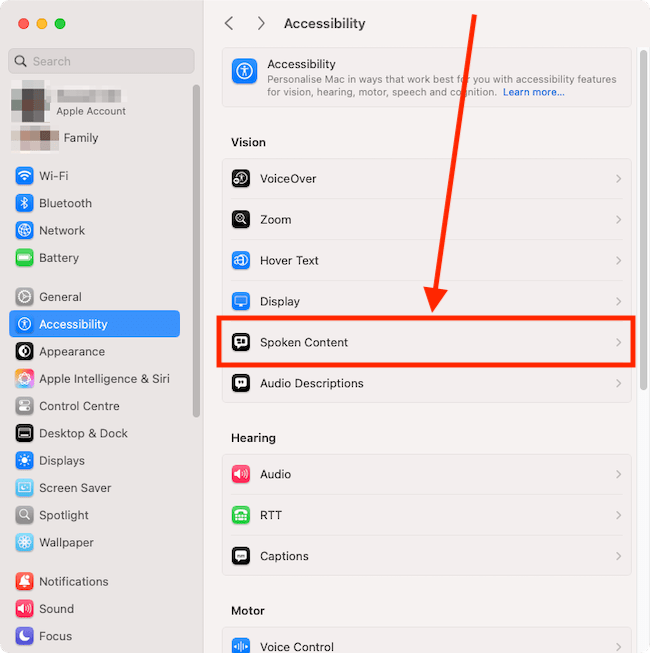
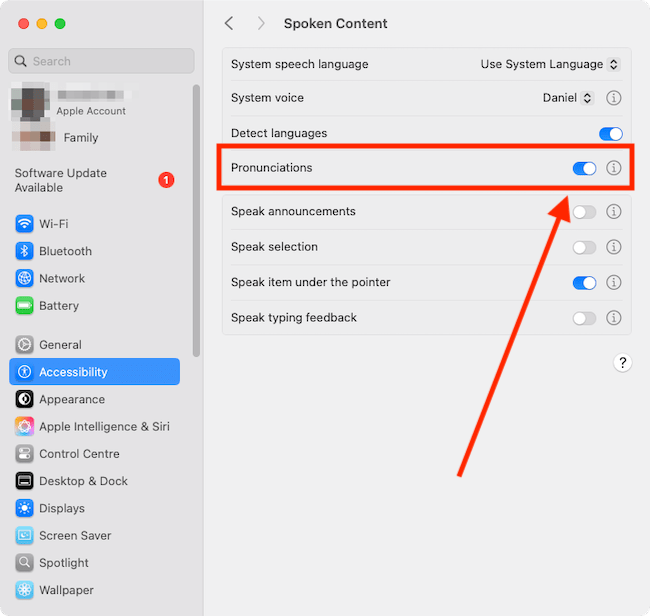
VoiceOver is separate from Read & Speak. To turn it off:
To stop mid-sentence: Press Option + Escape.
Samsung phones have their own TTS settings on top of Android's built-in ones.
On One UI 3.1 and newer, Samsung calls this "TalkBack." On older One UI versions it's called "Voice Assistant" under Screen Reader.
When your phone is operating normally:
When the screen reader is already active (requires two-finger gestures):
Volume shortcut: Hold Volume Up + Volume Down for 3 seconds.
This is different from the screen reader — it controls the TTS voice used by apps like Google Maps or navigation.
Settings > General Management > Text-to-speech
From here you can switch between Samsung TTS and Google TTS engines, or adjust speech rate and pitch. There's no global on/off toggle here — disabling TTS happens at the individual app level.
Xiaomi uses the standard "TalkBack" name but buries it a level deeper than stock Android under Additional Settings.
Settings path (MIUI 14 and HyperOS):
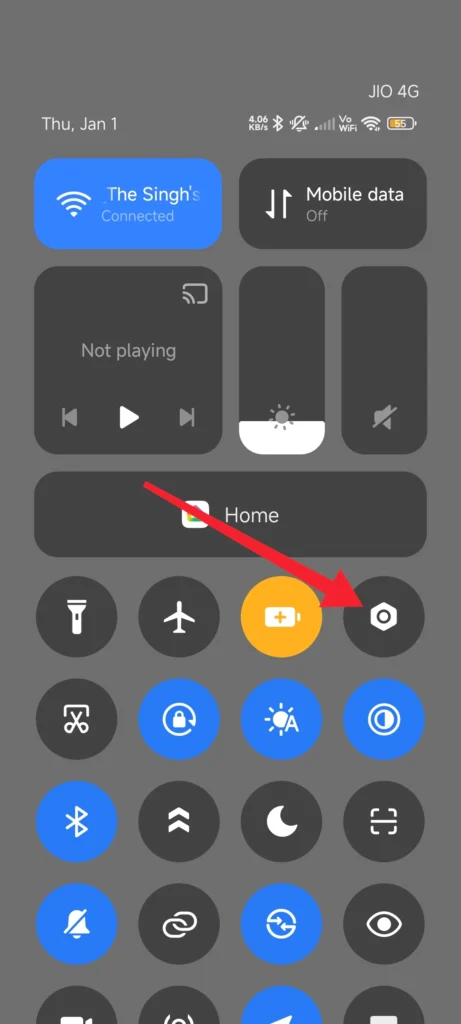
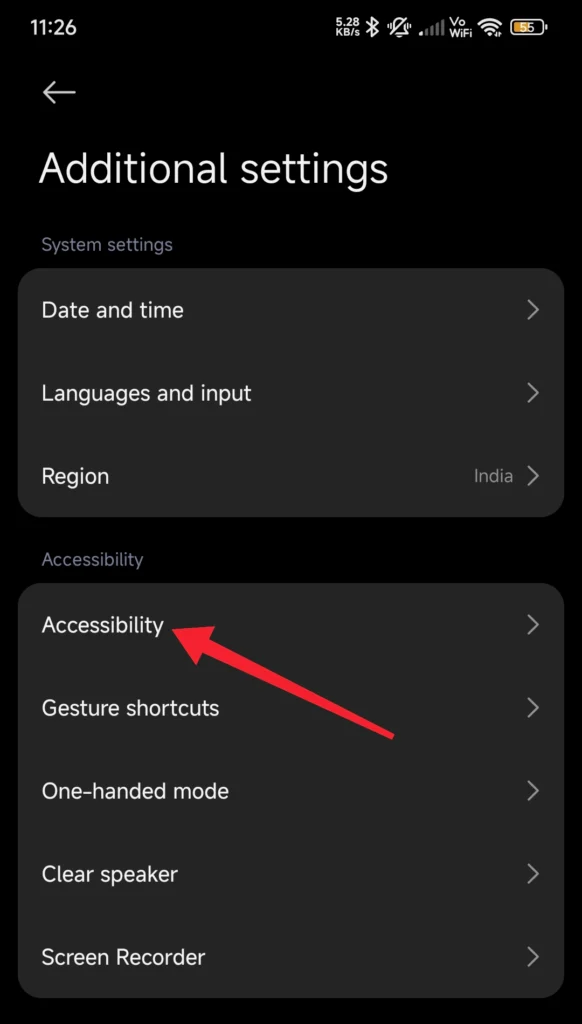
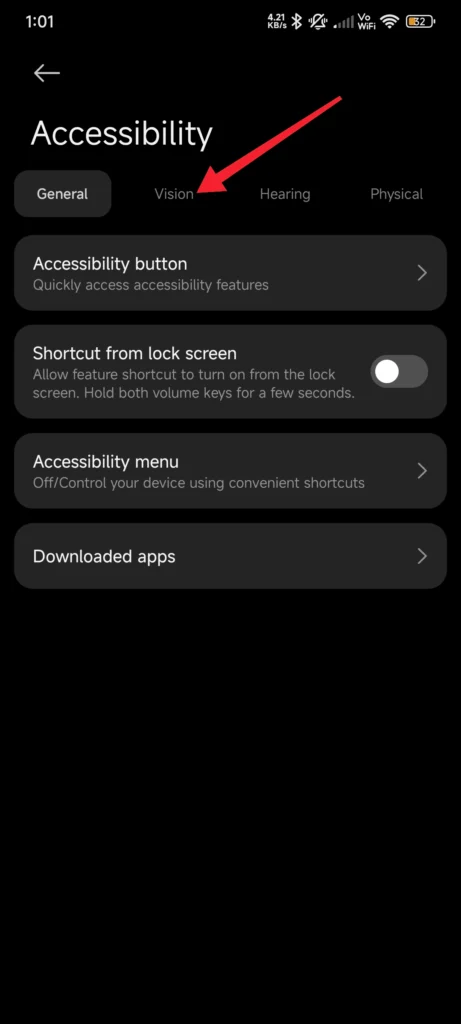
Volume shortcut: Hold Volume Up + Volume Down for 3 seconds — the fastest method on any Xiaomi device.
HyperOS vs MIUI 14: The path is identical. The only difference some users report is that on certain HyperOS builds, Vision doesn't appear as a subcategory and TalkBack sits directly under Accessibility.
Motorola runs close to stock Android, so the path is simpler than Samsung or Xiaomi — no extra layers.
That's it — no "Additional Settings" or "Vision" submenu. Confirmed on Moto G, Moto Edge, and Moto G 5G models running Android 14/15.
Volume shortcut: Hold Volume Up + Volume Down for 3 seconds.
Stop it from re-activating accidentally: Go to Settings > Accessibility > Volume key shortcut and toggle it off.
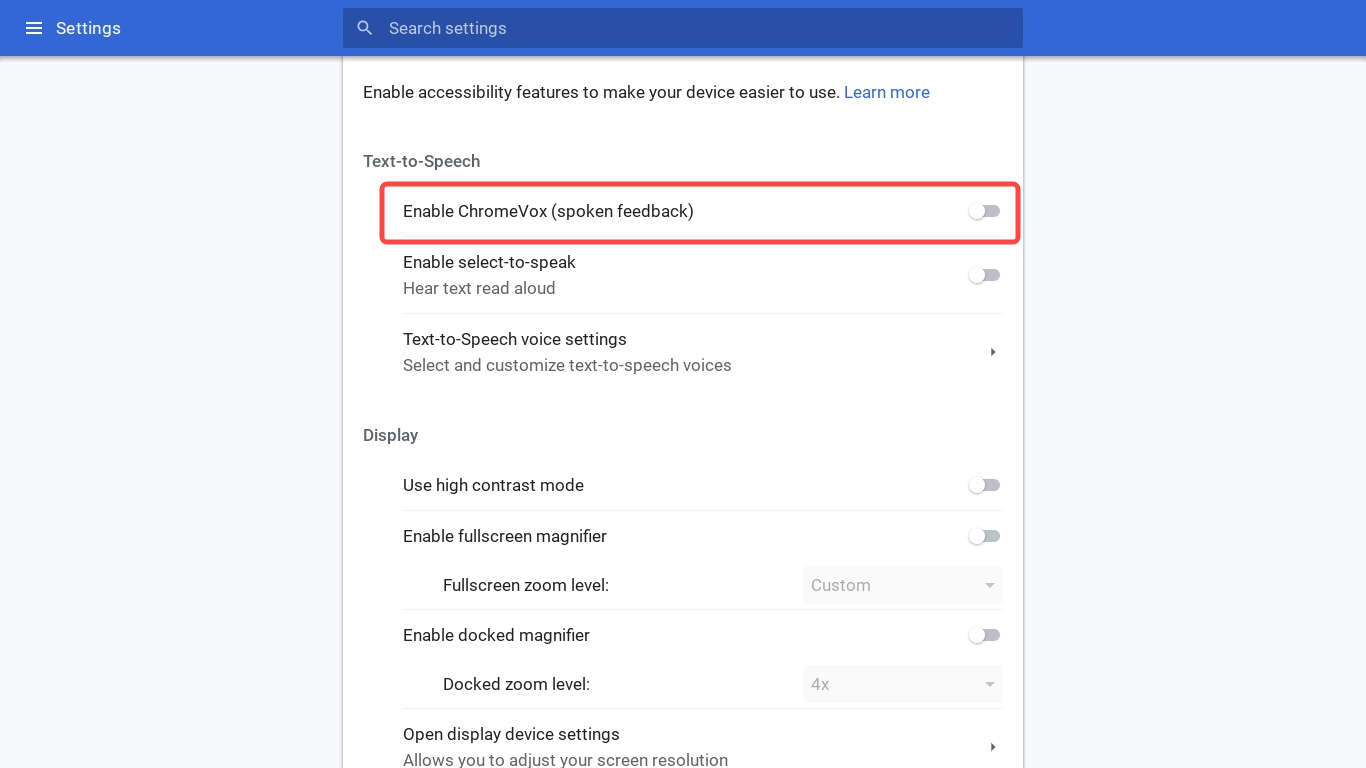
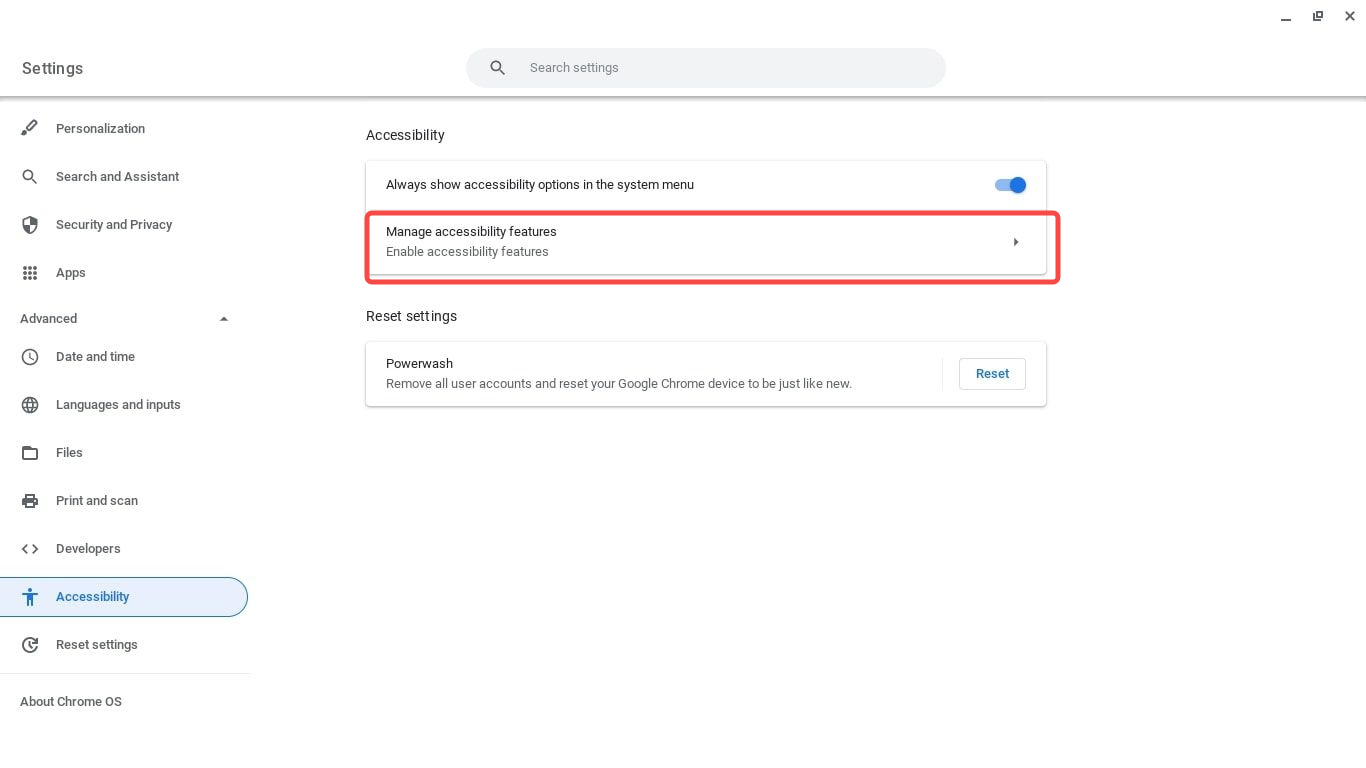
Chromebooks have two TTS features: ChromeVox (full screen reader) and Select to Speak.
Fastest: Press Ctrl + Alt + Z — instant toggle.
To disable it permanently:
| Device | Feature | Fastest Method | Menu Path |
|---|---|---|---|
| Android | TalkBack | Hold Vol Up + Vol Down (3s) | Settings > Accessibility > TalkBack |
| Android | Select to Speak | — | Settings > Accessibility > Select to Speak |
| iPhone | Spoken Content | — | Settings > Accessibility > Spoken Content |
| iPhone | VoiceOver | Triple-click Side button | Settings > Accessibility > VoiceOver |
| Windows 11 | Narrator | Win + Ctrl + Enter | Settings > Accessibility > Narrator |
| Windows 10 | Narrator | Win + Ctrl + Enter | Settings > Ease of Access > Narrator |
| Mac (Sonoma/Sequoia) | Read & Speak | — | System Settings > Accessibility > Read & Speak |
| Mac | VoiceOver | Command + F5 | System Settings > Accessibility > VoiceOver |
| Samsung | TalkBack | Hold Vol Up + Vol Down (3s) | Settings > Accessibility > Screen Reader |
| Xiaomi (MIUI/HyperOS) | TalkBack | Hold Vol Up + Vol Down (3s) | Settings > Additional Settings > Accessibility > Vision > TalkBack |
| Motorola | TalkBack | Hold Vol Up + Vol Down (3s) | Settings > Accessibility > TalkBack |
| Chromebook | ChromeVox | Ctrl + Alt + Z | Settings > Advanced > Accessibility > Manage features |
| Chromebook | Select to Speak | — | Settings > Advanced > Accessibility > Manage features |
Accidental activation is the most common reason. On Android, holding both volume buttons can accidentally launch TalkBack. On iPhone, triple-clicking the side button can trigger VoiceOver if Accessibility Shortcut is set.
It's disruptive in public. Screen readers announce everything — notifications, app names, button labels — out loud. This is embarrassing and hard to stop quickly if you don't know the shortcut.
Performance and battery. Running a screen reader continuously adds CPU overhead and drains battery faster, which is why gamers and power users often keep it off.
Personal preference. Many users find it easier to process information visually. Text-to-speech is a powerful accessibility tool, but not everyone needs it running all the time.
Turning off your device's built-in screen reader makes total sense — those robotic system voices aren't designed for enjoyment. But if you still want text-to-speech for things like listening to articles, creating voiceovers, or producing content, the experience doesn't have to be that bad.
Lazybird is an AI voice generator built around natural, human-sounding voices in 50+ languages. Unlike your phone's accessibility reader, it's designed specifically for content — you paste text, pick a voice, and get a clean audio file you can use anywhere. There's a free tier to get started, and no accessibility settings to wrestle with. If you've been tolerating robotic system voices all this time, it's worth trying something actually built for the job.
Free voice over software, tested: record your own voice or let AI read the script. Real samples, free-plan limits, watermarks and commercial-use rules.
Which Kindles and Kindle apps read aloud, how to turn on Assistive Reader and VoiceView, and why text to speech is greyed out on some books (Oct 2026).
Record clean voice-overs at home: script timing, room, mic distance, levels, and an editing order tested on a real recording against ACX and podcast targets.
Natural, celebrity and character voices. Or clone your own.