Set up Lazybird for your agent
Real recordings of each setup, start to finish. It takes about a minute, and you sign in to your Lazybird account once.
 Add Lazybird to ChatGPT
- 1Install the plugin
Open Lazybird in ChatGPT and click Install plugin.
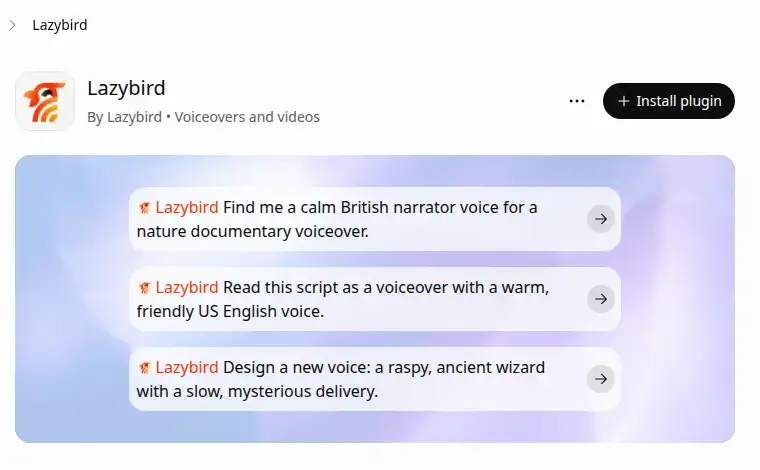
- 2Sign in and allow
Sign in to Lazybird, or create a free account, then click Allow.
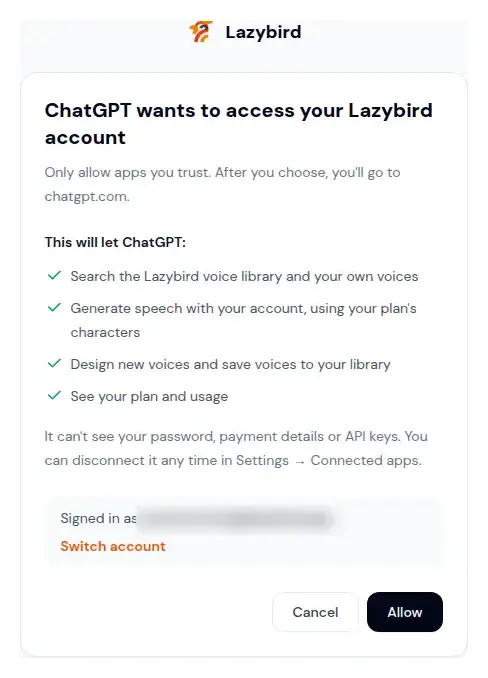
- 3Ask for a voiceover
Type @Lazybird in any chat, then the voice and the script, for example: "Read this as an MP3 in a warm, friendly American voice: …". You get a player and a Download MP3 link.
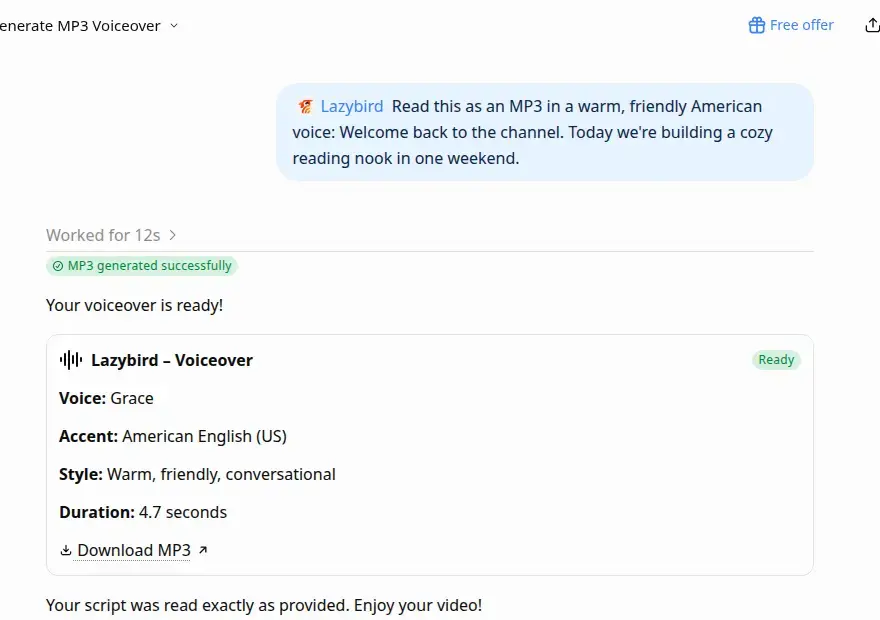
 Add Lazybird to Claude
- 1Open connectors
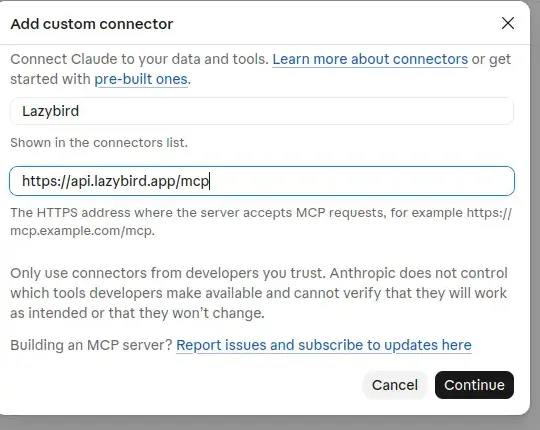
In Claude, open Settings, then Customize and Connectors. Click Add, then Add custom connector.
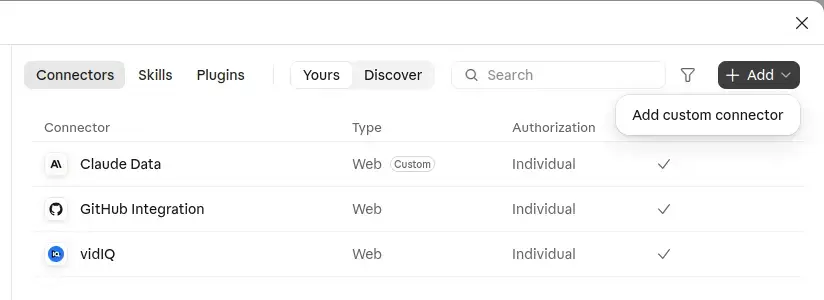
- 2Paste the server
Enter the name Lazybird and the address https://api.lazybird.app/mcp (copy it from the box under the steps), then click Continue and Add. Claude detects the sign-in on its own.
- 3Connect
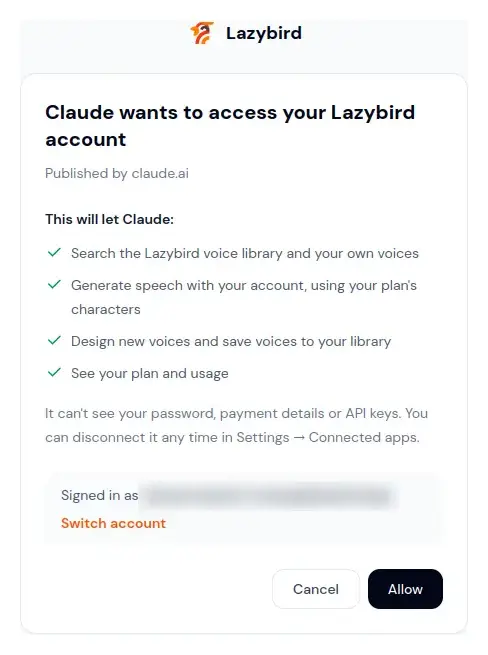
Click Connect, sign in to Lazybird and click Allow.
- 4Ask for a voiceover
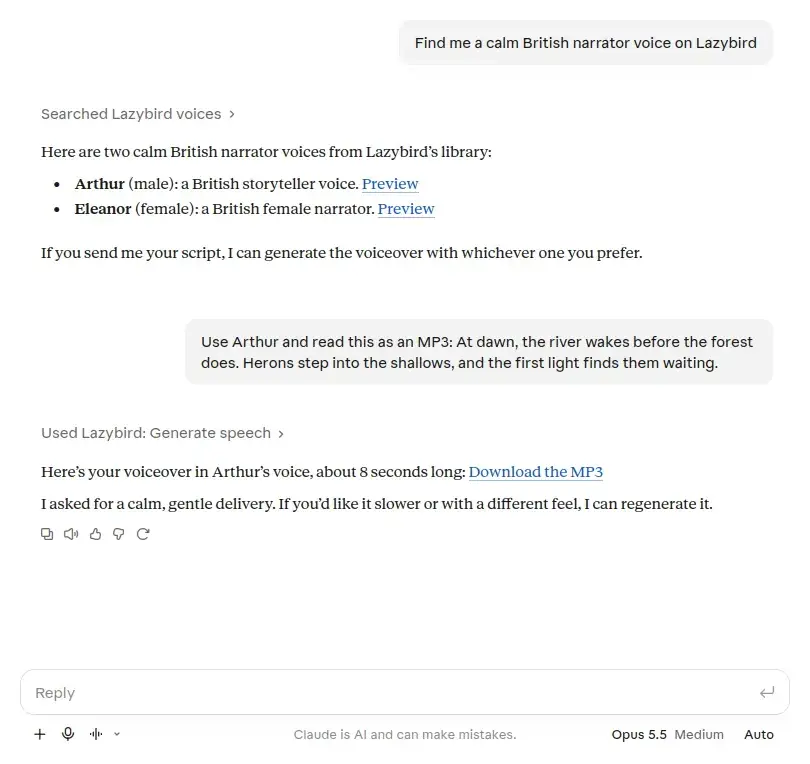
Ask in plain words, for example: "Find me a calm British narrator voice on Lazybird", then "Use Arthur and read this as an MP3: …". If Claude asks before using Lazybird, click Allow. The answer links to your MP3.
1https://api.lazybird.app/mcp Add Lazybird to Gemini
- 1Open connected apps
On gemini.google.com, open Settings at the bottom, then Connected Apps.
- 2Add a custom app
In Custom apps, click Add a custom app, enter https://api.lazybird.app/mcp (copy it from the box under the steps), then click Next.
- 3Sign in
Sign in to Lazybird when asked and click Allow.
- 4Ask for a voiceover
Type @ in a chat, pick Lazybird, then ask, for example: "Read this script in a warm, friendly US English voice."
1https://api.lazybird.app/mcpCustom apps are available to personal Google accounts in the US, 18 and over, with Keep Activity on, in English.
 Other AI agents and coding agents
- 1Remote MCP
Any app or agent that supports remote MCP servers with OAuth sign-in: add the server address below and sign in to your Lazybird account.
- 2Coding agents: use an API key
Create a key at lazybird.app/platform and give it to your agent. It sends the key in the X-API-Key header, as in the example below.
1curl https://api.lazybird.app/v2/generate-speech \2 -H "X-API-Key: YOUR_API_KEY" -H "Content-Type: application/json" \3 -d '{"voiceId": "tgJ2Hes6DauwTg8kFrRPLN", "text": "Hello from my agent."}' -o hello.mp3