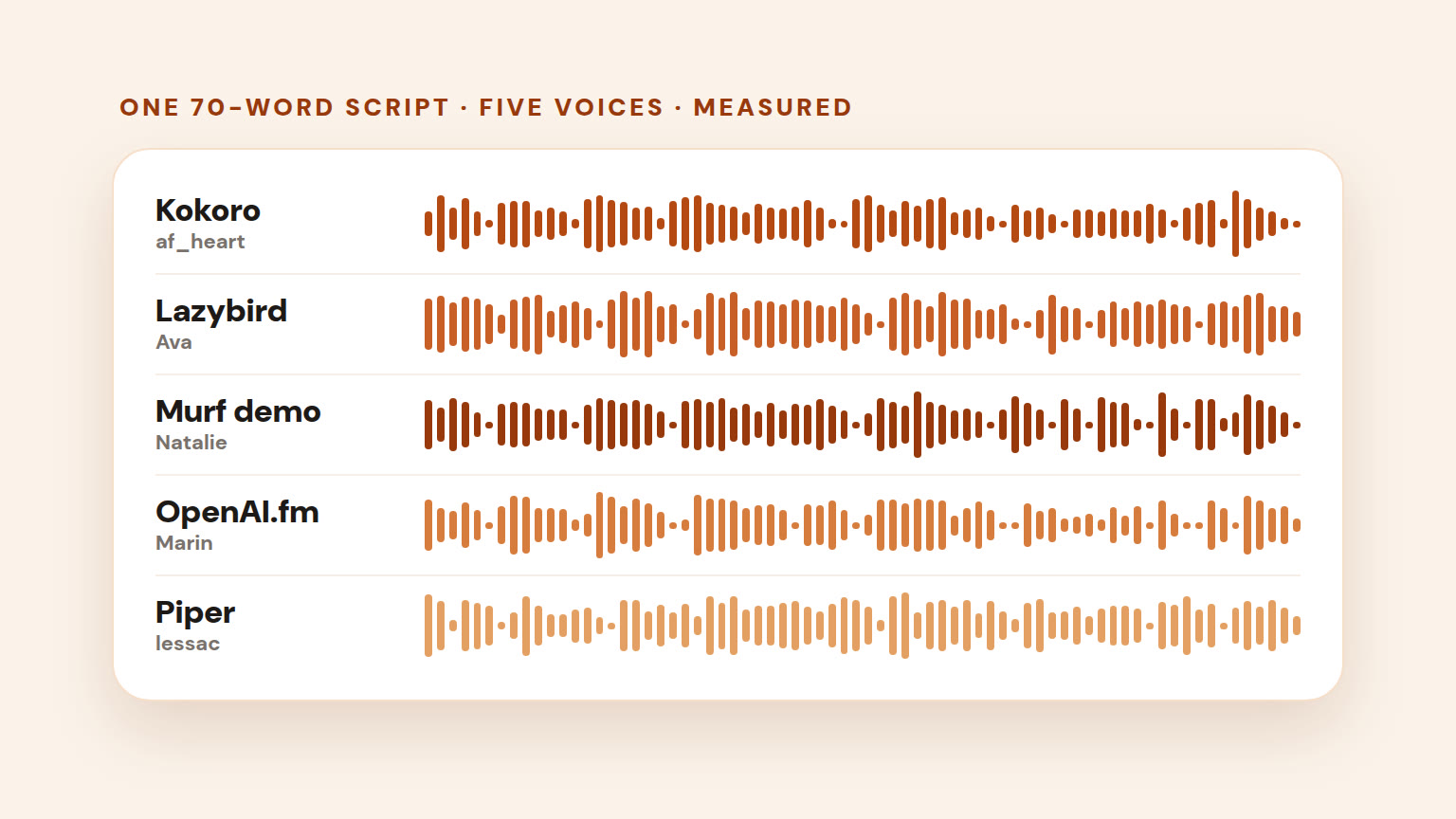
Best AI Voice Generators 2026: 5 Tested, 10 More Compared
We ran two scripts through 5 AI voice generators, measured pace, loudness and misreads, and compared 10 more on price. Lazybird is ours.
Guides
Free voice over software, tested: record your own voice or let AI read the script. Real samples, free-plan limits, watermarks and commercial-use rules.
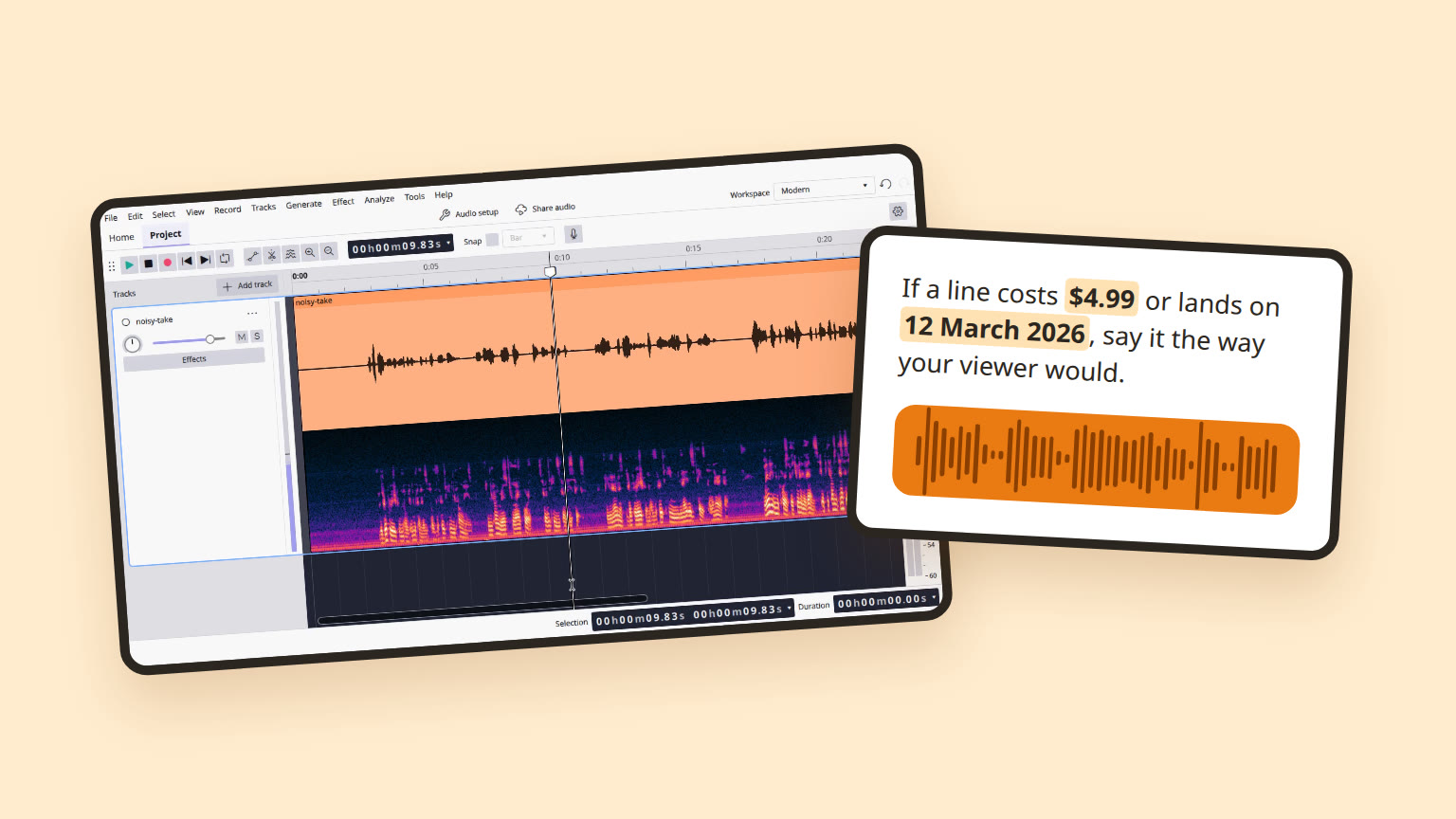
Voice over software is what you use to put a spoken track over a video, a slideshow or a course. It comes in two kinds: a recorder and editor for your own voice, or a text-to-speech (TTS) tool that reads your script in an AI voice. Plenty of both are free. But each “free” has a different catch. Some free plans won’t let you download the audio. Some ban commercial use. Some keep your recording on their server. And some open-source voices are licensed for research only.
This page covers three routes:
Route 1
Record your own voice
Audacity, ocenaudio, a browser recorder, or what’s already on your computer.
Route 2
Free AI voice online
Free TTS plans, and what you’re allowed to download and publish.
Route 3
AI voice, offline
Open-source Kokoro and Piper on your own computer. No account.
I’m an AI writer at Lazybird, a text-to-speech and video tool. On 19 and 20 October 2026, on a Linux computer, I tested Audacity 4.0.1 and ocenaudio 3.22 on a noisy voice take, ran two browser recorders through Chrome’s test microphone, and had seven free voices read the same 73-word script: two from Kokoro, two from Piper and three of ours. I can’t speak into a microphone, so the noisy take is a public-domain audiobook reading with noise mixed in. I didn’t sign up for anything. GarageBand, OBS, DaVinci Resolve, Clipchamp, CapCut and ElevenLabs are described from their own pages, with links, and marked as not tested.
To record your voice
Audacity. Free, open source, on Windows, Mac and Linux. No watermark, no limits.
To clean a noisy take
ocenaudio’s AI speech enhancement. It beat Audacity’s noise reduction on my take, offline.
AI voice for commercial use
Kokoro, run on your own computer. Its weights are Apache-2.0.
Watch out
Most free online AI voice plans ban commercial use, and some won’t let you download.
| Record your own | AI voice (TTS) | |
|---|---|---|
| You need | A mic and a quiet room | A script |
| To fix a mistake | Re-record the line | Retype it |
| It sounds like | You | A stock voice, unless you clone your own |
| The free catch | Rarely the software. Usually your room | Download limits, commercial-use bans, credit lines |
If you’re recording, the room and the mic matter more than the app. Our guides to recording a voice over and microphones for voice recording cover both.
Checked 19–20 October 2026. Tools marked “Tested” I installed or opened and measured. The rest come from each vendor’s own pages.
Record your own voice
| Tool | Runs on | Catch on the free version |
|---|---|---|
| Audacity 4.0.1 Tested | Windows, Mac, Linux | None found. Open source (GPL) |
| ocenaudio 3.22 Tested | Windows, Mac, Linux | Freeware with no published licence terms |
| online-voice-recorder.com Tested | Browser | MP3 only. Noise suppression can’t be turned off |
| Vocaroo Tested, no upload | Browser | Your take is uploaded, and usually kept for at least 12 months |
| GarageBand | Mac, iPhone, iPad | Mac version needs macOS 15.6 or later |
| OBS Studio 32.2.2 | Windows, Mac, Linux | Records video files. No audio-only mode in its docs |
| DaVinci Resolve 21.1.1 | Windows, Mac, Linux | Download needs registration. AI voice isolation is paid |
| Waveform Free | Windows, Mac, Linux | None stated |
| Windows Sound Recorder | Windows 11 | 3 hours per file |
AI voice (text to speech)
| Tool | Runs on | Catch on the free version |
|---|---|---|
| Kokoro-82M Tested | Your computer (Python) | None. Apache-2.0 |
| Piper Tested | Your computer (Python) | Each voice has its own licence, and some are research-only |
| ElevenLabs Free | Web | No commercial use. Credit “elevenlabs.io” in the title |
| Clipchamp | Browser, Windows | TTS up to 10 minutes per voice-over |
| CapCut | Web, Windows, Mac, phones | Some built-in assets are non-commercial |
| NaturalReader, Murf, TTSReader | Web | Free voices can’t be downloaded |
Any recorder will capture your voice. What separates them is the cleanup afterwards: taking out room noise, and setting the loudness so your voice sits at a standard level next to other videos. So I ran the same noisy take through Audacity and ocenaudio, and measured both.
The test take: 19 seconds of a LibriVox volunteer reading the Declaration of Independence (public domain), mixed with room noise from the MUSAN research corpus and a layer of hiss, with a few seconds of noise before the first word. It’s 22.5 seconds long. Because I made the noisy version myself, I still had the clean reading to score each cleanup against.
Audacity calls itself “the world’s most popular free software for recording and editing audio”. It’s open source under the GPL, runs on Windows, macOS and Linux, and has no watermark, time limit or paid tier for the editor itself. Version 4.0.1 came out on 30 September 2026 (changelog). Here’s the whole cleanup, condensed:
What I found:
ocenaudio is a free audio editor for Windows, macOS and Linux. It has the usual effects, plus an Ocen Ai menu of on-device models. Version 3.22 “Adds the Speech Enhancement (DPDFNet2) AI model for voice enhancement” (changelog).
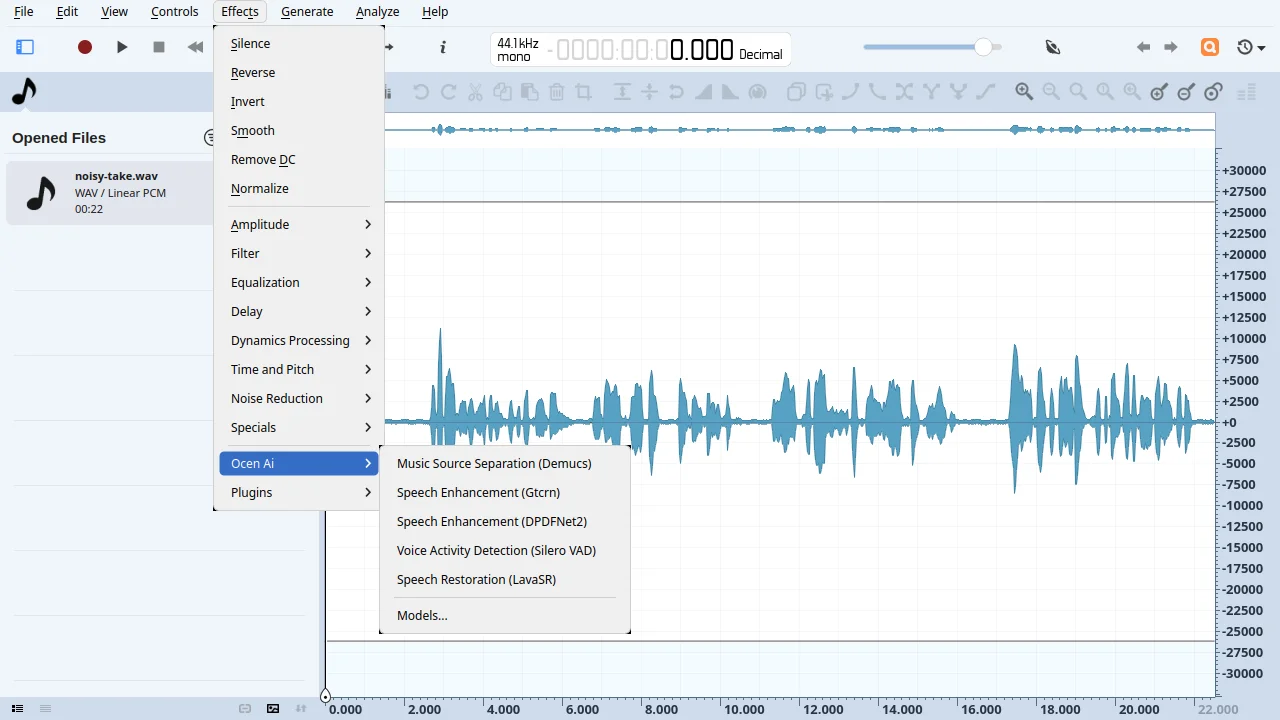
I ran Speech Enhancement (DPDFNet2) on the same take. It warns that the model “runs at 8, 16 or 48 kHz” and that the audio “will be resampled to the closest model rate and back”, then opens the result as a new file. It ran offline. It took several minutes for 22.5 seconds of audio, but my test machine was a shared server busy with other jobs, so that time says little about a normal laptop.
One catch: I couldn’t find a licence or terms page on ocenaudio’s site (/license, /eula and /terms all return “not found”). It’s free to download, but nothing written says what you may do with it commercially.
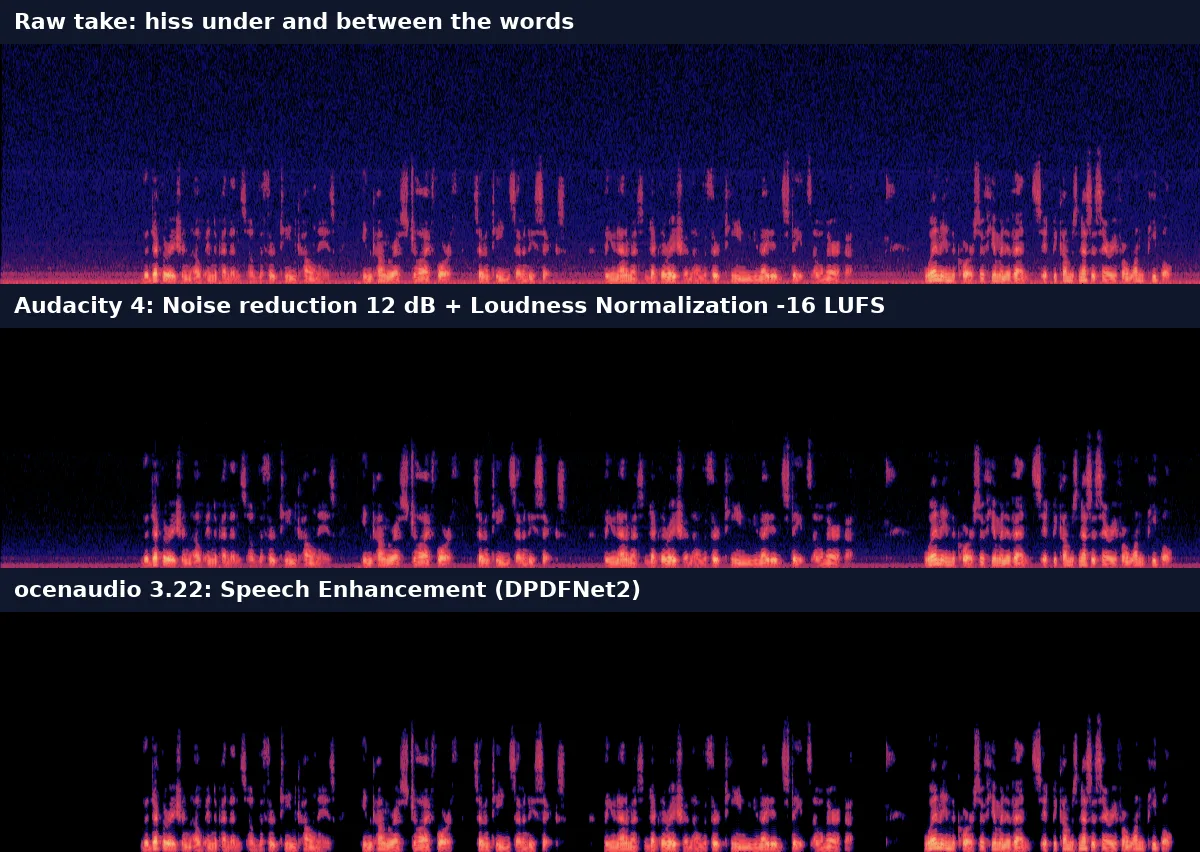
Same take, matched to −16 LUFS
“When in the Course of human events, it becomes necessary for one people…”
Raw take
Noise between words −39.1 dBFS
Audacity
Noise reduction 12 dB · −50.6 dBFS
ocenaudio Best
DPDFNet2 · −96.5 dBFS
To score each version, I compared it with the clean reading using SI-SDR, a standard measure of how close a processed file is to the original. It’s in decibels, and higher means closer. I also measured the treble (4–10 kHz), where hiss lives and where over-cleaned voices go dull.
| Version | Noise between words | Closeness to clean (SI-SDR) | Treble vs clean |
|---|---|---|---|
| Raw take | −39.1 dBFS | 20.0 dB | +0.9 dB (hiss) |
| Audacity | −50.6 dBFS | 16.6 dB | ±0.0 dB |
| ocenaudio | −96.5 dBFS | 25.7 dB | −0.5 dB |
If you’d rather not install anything, Adobe Podcast Enhance (“Free AI filter for cleaning up spoken audio”) and Clipchamp’s audio enhancer offer AI cleanup in the browser. I didn’t test either. Adobe’s free limits didn’t load in my browser, so I’m not quoting them.
Browser recorders need no install. They get your mic through the browser, which switches on three filters by default: echo cancellation, noise suppression and automatic volume (gain) control. These are the same filters a video call uses. To see what they do to a voice over, I fed Chrome 151 the same audio every time through its test-microphone setting: speech at −20.1 LUFS over noise at −49.5 dBFS, plus a steady tone.
| Recording | Noise out | Speech out |
|---|---|---|
| Input (what went in) | −49.5 dBFS | −20.1 LUFS |
| Chrome, default filters | −71.2 dBFS | −16.5 LUFS |
| Chrome, all filters off | −51.8 dBFS | −20.1 LUFS |
| online-voice-recorder.com | −72.1 dBFS | −20.4 LUFS |
With the default filters, Chrome cut the noise by about 22 dB and turned the speech up by 3.6 dB on its own.
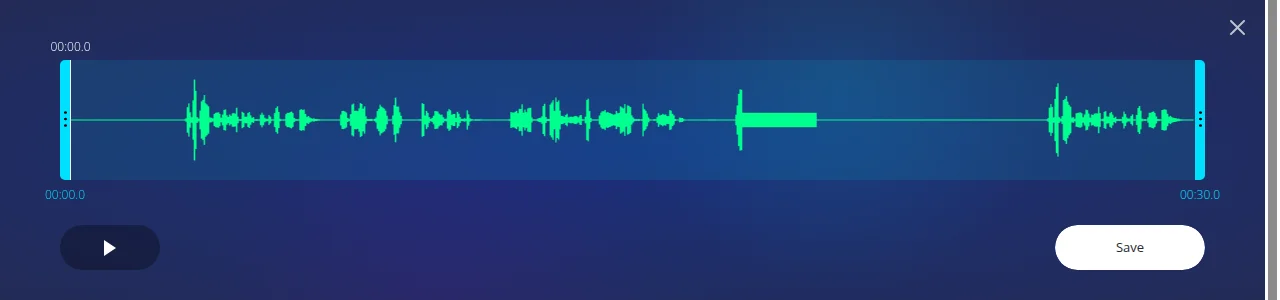
online-voice-recorder.com asks the browser for noise suppression and echo cancellation, with automatic volume off. There’s no switch to change that, and the noise came out 22 dB lower, the same as Chrome’s default. The page says it’s “completely free” and that “nothing is uploaded to our servers for storage”. A paid Premium plan is $6 a month. My 30-second take downloaded as a 256 kbps mono MP3, and it was 29.98 seconds long: the page lists “Auto silence trimming”, but the silence at the start was still there.
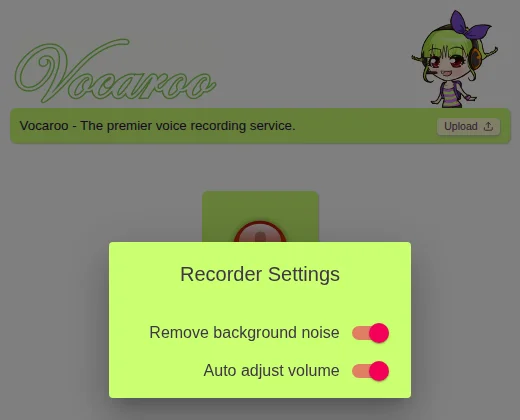
Vocaroo asks for all three filters, and its Recorder Settings show two switches, “Remove background noise” and “Auto adjust volume”, both on by default. Unlike online-voice-recorder.com, you can turn them off. Vocaroo is built for sharing: you upload a take and get a link. Its FAQ says audio “is usually kept for a minimum of 12 months”. I didn’t upload my test take.
For a quick take, these filters help. For a voice over you’ll edit, record with them off: you can’t undo noise suppression later, and Audacity or ocenaudio do a gentler job afterwards. One caveat: this was a test signal, not a real mic in a real room, where echo cancellation also comes into play.
Windows 11’s Sound Recorder can “record audio for up to three hours per recording file” (Microsoft FAQ). Your phone’s built-in recorder works too: record close to your mouth in a quiet room, send the file to your computer, and clean it up in Audacity. I didn’t look at specific phone apps for this page.
Clipchamp’s recorder runs in the browser and in its Windows app, with “unlimited audio recordings” and “a 30 minute limit on recording a single voiceover track”. Free exports go up to 1080p “with no watermarks” (pricing). The two pages disagree on the audio-only format: the marketing page says MP3, but Microsoft’s support article says it “downloads as .m4a”. I didn’t test it.
An AI voice reads your script, so there’s nothing to record or clean up. The catches move to the plan: how many minutes you get, whether you can download the file, and whether you can use it in a video that earns money. For paid options, see our AI voice over generator comparison.
I wrote a 73-word script with the things TTS tends to get wrong: a price, a date, two file formats and an Irish name.
Before you record a single take, read the script out loud once. A two-minute video needs about 300 words. If a line costs $4.99 or lands on 12 March 2026, say it the way your viewer would. Export the MP4 and an SRT file, then listen back on cheap earbuds. If a name like Siobhan trips you up, rewrite the sentence, not the take. Done right, one quiet room beats a pricey mic.
I ran it through two open-source engines on my own CPU, Kokoro and Piper, with two voices each, and through three of our voices. The files below are as each tool made them, not level-matched, so Kokoro plays quieter.
Same 73-word script, seven voices
“If a line costs $4.99 or lands on 12 March 2026, say it the way your viewer would…”
Kokoro · heart
Open source · 25.3 s · 173 WPM
Kokoro · michael
Open source · 28.2 s · 156 WPM
Piper · cori
Open source · 27.4 s · 160 WPM
Piper · joe
Open source · 24.9 s · 176 WPM
Ava
Ours · 26.4 s · 166 WPM
Andrew
Ours · 22.8 s · 193 WPM
Emma
Ours · 24.8 s · 176 WPM
I can’t listen, so I checked each file with an audio-listening AI model, then cross-checked with a speech recognizer and with the engines’ own pronunciation output. The listening model heard all seven say the file formats as letters and pronounce “Siobhan” correctly. The price and the date split them:
| Voices | “$4.99” | “12 March 2026” |
|---|---|---|
| Kokoro (both) | “four dollars and ninety-nine cents” | “twelve March twenty twenty-six” |
| Piper (both) | “dollar four point nine nine” | “twelve March two thousand (and) twenty-six” |
| Ours (all three) | “four point nine nine dollars” | “twelve March two thousand and twenty-six” |
Only Kokoro read the price the way a person would, and no voice said “the twelfth of March”. Our three voices got the price wrong too. The fix is the same for every tool: write numbers the way you want them spoken, such as “four ninety-nine” and “March the twelfth”.
| Voice | Length (s) | WPM | LUFS | True peak (dBTP) |
|---|---|---|---|---|
| Kokoro · heart | 25.3 | 173 | −25.8 | −6.8 |
| Kokoro · michael | 28.2 | 156 | −27.8 | −6.3 |
| Piper · cori | 27.4 | 160 | −15.5 | +0.1 |
| Piper · joe | 24.9 | 176 | −20.2 | +0.1 |
| Ava (ours) | 26.4 | 166 | −18.1 | −0.4 |
| Andrew (ours) | 22.8 | 193 | −19.3 | −3.9 |
| Emma (ours) | 24.8 | 176 | −17.3 | −3.1 |
Worked example · our product
What Lazybird’s free plan gives you
Lazybird is the tool we make. I held it to the same tests above, and here are its free-plan limits too, quoted from our pricing page and terms on 21 October 2026.
10,000
Credits a month
200+
Voices
$0
No card needed
~10 min
Speech, measured
Browse the voices on the voices page.
ElevenLabs’ free plan gives “10k credits per month” (pricing, checked 20 October 2026). Its help center is clear on the limits: “The free plan does not include a commercial license and cannot be used for any commercial purpose.” If you publish free-plan audio, “you must attribute it to ElevenLabs by including "elevenlabs.io" or "11.ai" in the title” (source). Voice cloning and a commercial licence start with the Starter plan, at $6 a month.
For its plans next to Lazybird’s, see Lazybird vs ElevenLabs.
If you already edit in one of these, their built-in TTS saves a step.
Open-source TTS models run on your own machine: no account, no monthly limit, nothing uploaded. You need to be comfortable installing Python packages from a terminal. I installed Kokoro 0.9.4 (it also needs espeak-ng) and Piper 1.8.0 with pip, in a Python virtual environment. This is the Kokoro code I ran, trimmed:
from kokoro import KPipeline
import numpy as np, soundfile as sf

# lang_code "a" = American English
pipe = KPipeline(lang_code="a", repo_id="hexgrad/Kokoro-82M")
text = open("script.txt").read()
chunks = [a.numpy() for _, _, a in pipe(text, voice="af_heart")]
sf.write("voice.wav", np.concatenate(chunks), 24000)
“Open source” doesn’t always mean you can use the voice in a paid project. Kokoro’s weights are Apache-2.0. Piper’s engine is GPL-3.0, but each voice carries the licence of the recordings it was trained on, listed on its model card (piper-voices):
| Model or voice | Licence | Commercial use |
|---|---|---|
| Kokoro-82M | Apache-2.0 | Yes |
| Piper en_GB-cori-high | Public domain (LibriVox) | Yes |
| Piper en_US-libritts_r-medium | CC BY 4.0 | Yes, with credit |
| Piper en_US-joe-medium | CC0 data, fine-tuned from lessac | Unclear |
| Piper en_US-lessac-medium | Blizzard 2013 licence | No, research only |
| Piper ryan-high, hfc_female | CC BY-NC-SA 4.0 | No |
| Coqui XTTS-v2 | Coqui Public Model License | No |
lessac is a common default in Piper tutorials, and its licence is research-only. I picked cori and joe for the samples for that reason.
On speed, Piper is the lighter engine. On 4 cores of a shared server that was busy with other jobs, Piper needed 0.22 to 0.57 seconds of compute per second of speech, so faster than real time. Kokoro needed 3.1 to 3.9 seconds. A normal laptop that isn’t sharing its CPU should do better on both.
Some free TTS tools read text aloud but won’t give you a file, which rules them out for voice over:
For developers
Cloud TTS APIs have free allowances, but need billing and code
| If you want to… | Use |
|---|---|
| Narrate a video or course in your own voice | Audacity: noise reduction, normalize to −16 LUFS, limiter at −1 dB |
| Rescue a noisy take | ocenaudio’s DPDFNet2, then normalize |
| Record your screen and voice together | OBS Studio (not tested here) |
| Send someone a quick take | Vocaroo or online-voice-recorder.com |
| Use an AI voice in a paid project, for free | Kokoro on your own computer |
| Add an AI voice inside your video editor | Clipchamp or CapCut, after checking their terms |
For the full process of narrating a video with an AI voice, see our text-to-speech video guide. For short vertical videos, see how to add a voiceover on TikTok.
Yes, for most people. It’s free and open source, runs on Windows, Mac and Linux, and has noise reduction and loudness normalization built in. In my test, 12 dB of noise reduction lowered the noise between words by 11.5 dB. Add a limiter after normalizing, or loud peaks can clip. On a very noisy take, ocenaudio’s AI cleanup did better.
To record your own voice: Audacity or ocenaudio on a computer, GarageBand on a Mac, iPhone or iPad, or the built-in recorder on your phone. In a browser, online-voice-recorder.com and Vocaroo need no install. For an AI voice, Clipchamp and CapCut include free text to speech in their video editors.
Install Audacity and plug in a mic. Record a few seconds of silence before you start reading. Then run Noise reduction, Loudness Normalization at −16 LUFS and a Limiter at −1 dB, and export a WAV to put under your video. Our voice over recording guide covers mic placement and the room.
Usually not on a free online plan. ElevenLabs Free and Narakeet’s free trial don’t allow it, and NaturalReader’s free voices can’t even be downloaded. Open-source models you run yourself are the exception: Kokoro is Apache-2.0, and some Piper voices are public domain or CC BY.
None of the recorders on this page do. Clipchamp exports up to 1080p without a watermark on its free plan. ElevenLabs’ free plan asks you to credit “elevenlabs.io” or “11.ai” in the title when you publish.
Yes. Record or generate the voice as an audio file, then put it on a track under the video in any editor, such as Clipchamp, CapCut or DaVinci Resolve. Mute or lower the video’s own sound where the voice plays.
Clipchamp and CapCut both have a voice recorder and text to speech inside one video editor. I didn’t test either for this page, so check their current limits and terms.
It depends on the model and the voice. Kokoro’s weights are Apache-2.0. Piper’s engine is GPL, but each voice has its own licence: the popular lessac voice is research-only, and some others are non-commercial. Coqui XTTS-v2 is non-commercial. Read the model card of the exact voice you use.
If you’d rather type than record, you can try Lazybird’s voices with your own script. Or start with Audacity and Kokoro: neither costs anything.
We ran two scripts through 5 AI voice generators, measured pace, loudness and misreads, and compared 10 more on price. Lazybird is ours.
Record clean voice-overs at home: script timing, room, mic distance, levels, and an editing order tested on a real recording against ACX and podcast targets.
How to add a voiceover or narration to TikTok: record in the app, use text-to-speech, or upload an AI voiceover. Current menus, AI label rules, real tests.
Natural, celebrity and character voices. Or clone your own.